What a user manual includes
Five parts, each answering one question the reader brings. The task part is most of the manual; the others stay short.
| Part | The reader's question | What goes in | Typical length |
|---|---|---|---|
| Overview | Is this the right manual for me? | What the product does, who the manual is for, which version it covers | Half a page |
| Setup | What do I need before I start? | Requirements, account, roles and permissions, first sign-in | One or two pages |
| Tasks | How do I get this done? | One section per user goal, grouped into chapters by area of work | Most of the manual |
| Troubleshooting | Why did this not work? | Symptom (the exact message), cause, what to do | One entry per error users meet |
| Glossary | What does this word on the screen mean? | The interface's own terms, each defined once | One line per term |
Around the five parts sits the front matter: a title, the product version and the manual version with a date, the contents, and notices. A notice is anything that loses data or money, or can hurt someone; it goes first and is repeated in the task where it happens.
Organise the tasks by what the user wants to do, not by menu or module. The Microsoft Writing Style Guide asks for headings that describe what the instructions help the reader do, in parallel form: "Void an invoice", "Export a report", not "Invoice actions" next to "Exporting".
Two standards cover the ground. ISO/IEC/IEEE 26514:2022 covers the development process for designers and developers of information for users of software. IEC/IEEE 82079-1:2019 sets principles and general requirements for instructions for use of products of all kinds.
User manual template
The template downloads without signup. It holds the front matter with a contents field, the five parts, one task block marked to copy once per goal, and an optional appendix for a physical product.
| Format | Blank template | Example chapter |
|---|---|---|
| Word, .docx | Blank (9 KB) | Filled (87 KB) |
| OpenDocument, .odt | Blank (29 KB) | Filled (113 KB) |
| Markdown, .md | Blank (3 KB) | Filled, text only (2 KB) |
| Blank, 3 pages (54 KB) | Filled, 2 pages (157 KB) |
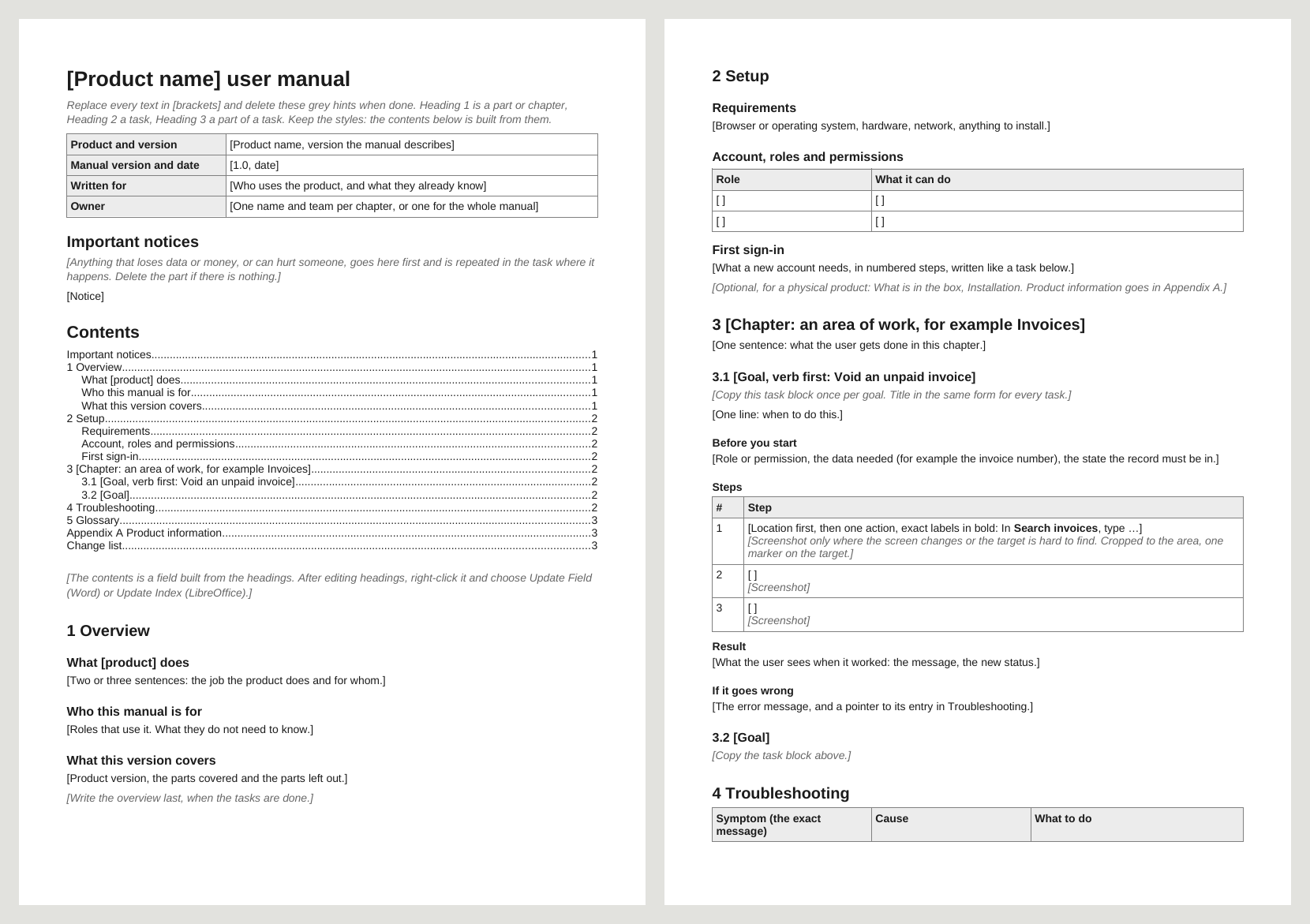
- Title table: product and version, manual version and date, who it is written for, one owner.
- Important notices: data or money at risk; delete the part if there is none.
- Overview: three short headings. Write them last.
- Setup: requirements, a role table, the first sign-in as numbered steps.
- Chapter and task block: a goal title, when to do it, Before you start, Steps, Result, If it goes wrong. Copy the block once per goal.
- Troubleshooting, Glossary, Change list: tables, one row per error, term or release.
- Appendix A: intended use, safety warnings, model and serial number, specifications, maintenance, disposal, support and warranty. Optional; delete it for software.
In Word, parts and chapters use the Heading 1 style, tasks Heading 2 and the parts of a task Heading 3. The contents is already a field built from those styles, as Word's References > Table of Contents would make it; after editing headings, right-click it and choose Update Field (Microsoft Support). Keep the styles when pasting text in: paste as text only, then apply the heading style.
The German page has the same files in German.
Example chapter: Invoices
The example is chapter 4 of a user manual for Ledgerly, written for the accounts team at Northwind, a made-up company. Ledgerly is a demo accounting app built for these guides; the screenshots are real recordings of it, one marker per screenshot, customer names blurred. The chapter has one task section, a troubleshooting entry and its glossary lines. It reuses the task, the recording and the screenshots of Work instructions, which writes the same task as a work instruction for Northwind's finance team; here it is a manual section for the product's users. Download the chapter (PDF, 2 pages).
Its task section, as the manual prints it:
- Goal title
- 4.1 Void an unpaid invoice
- When
- An invoice was sent in error and the customer has not paid it.
- Before you start
- The Ledgerly Finance role and the invoice number. The status must be Awaiting payment or Overdue; a Paid invoice cannot be voided.
- Steps
-
-
On the Invoices page, in Search invoices, type the invoice number, for example 10427. One row is left.
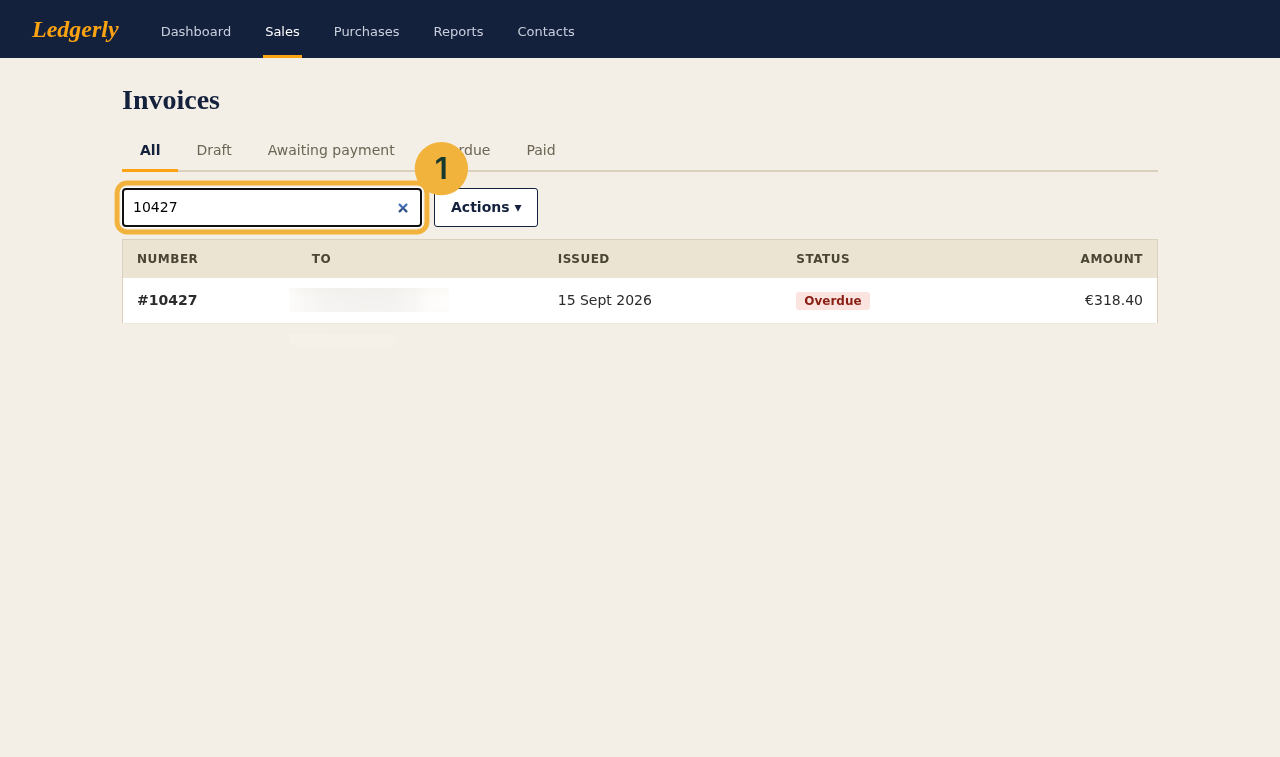
Step 1: the screen changes to one row. - Click the row #10427 and check that its status is not Paid.
- Click Actions. A menu opens.
-
Choose Void invoice.
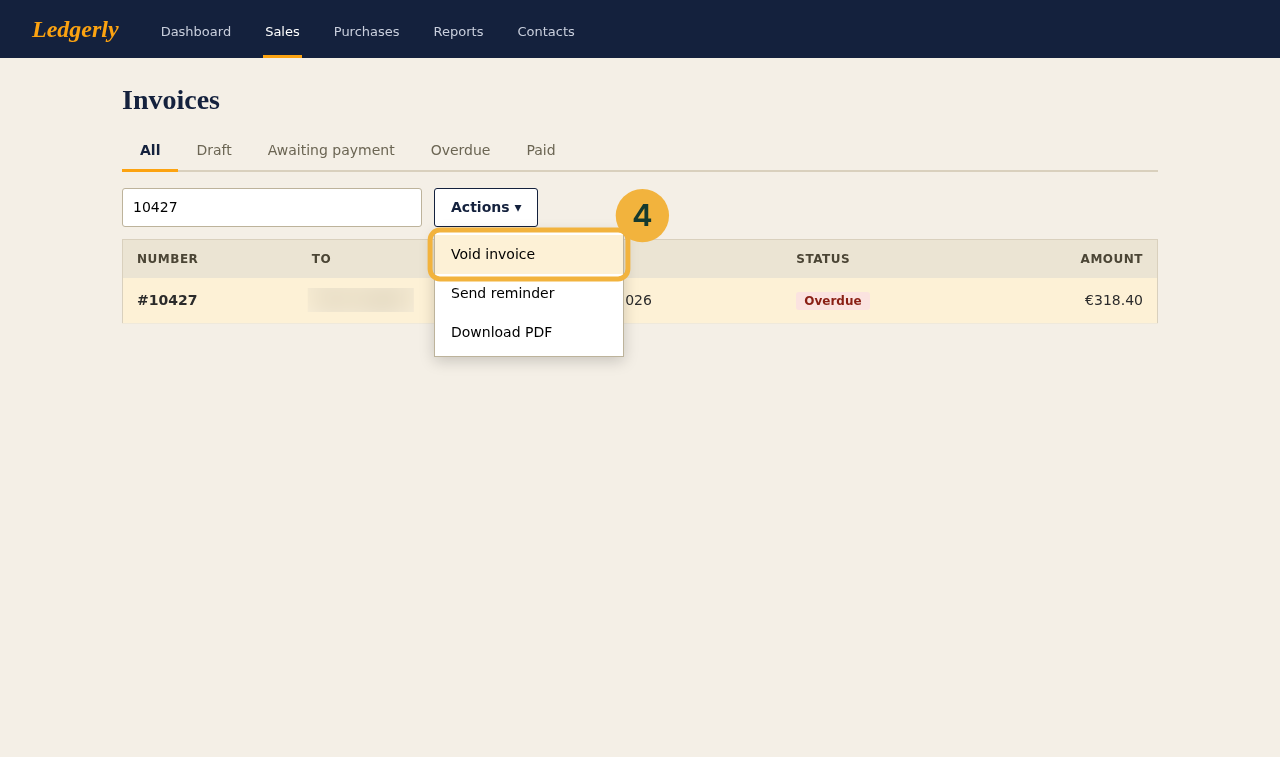
Step 4: the target sits next to two other menu items. -
Check the notice above the tabs and the status in the row.
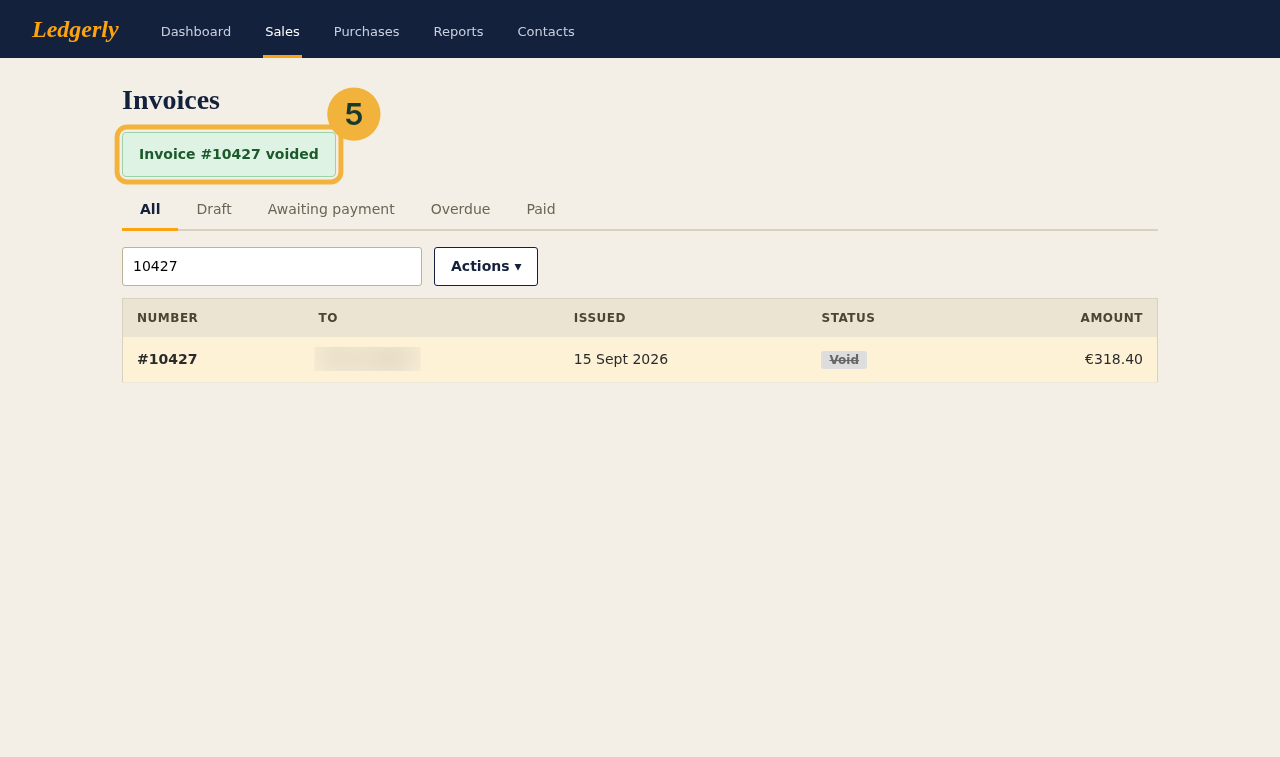
Step 5: the result the reader should see.
-
On the Invoices page, in Search invoices, type the invoice number, for example 10427. One row is left.
- Result
- The notice "Invoice #10427 voided"; the status reads Void, struck through. The invoice keeps its number.
- If it goes wrong
- A red notice "… is Paid and cannot be voided": see the troubleshooting entry below.
Steps 2 and 3 have no screenshot: the row and the Actions button are already in the step 1 picture.
The troubleshooting entry comes from the real error met while recording, on invoice 10428:
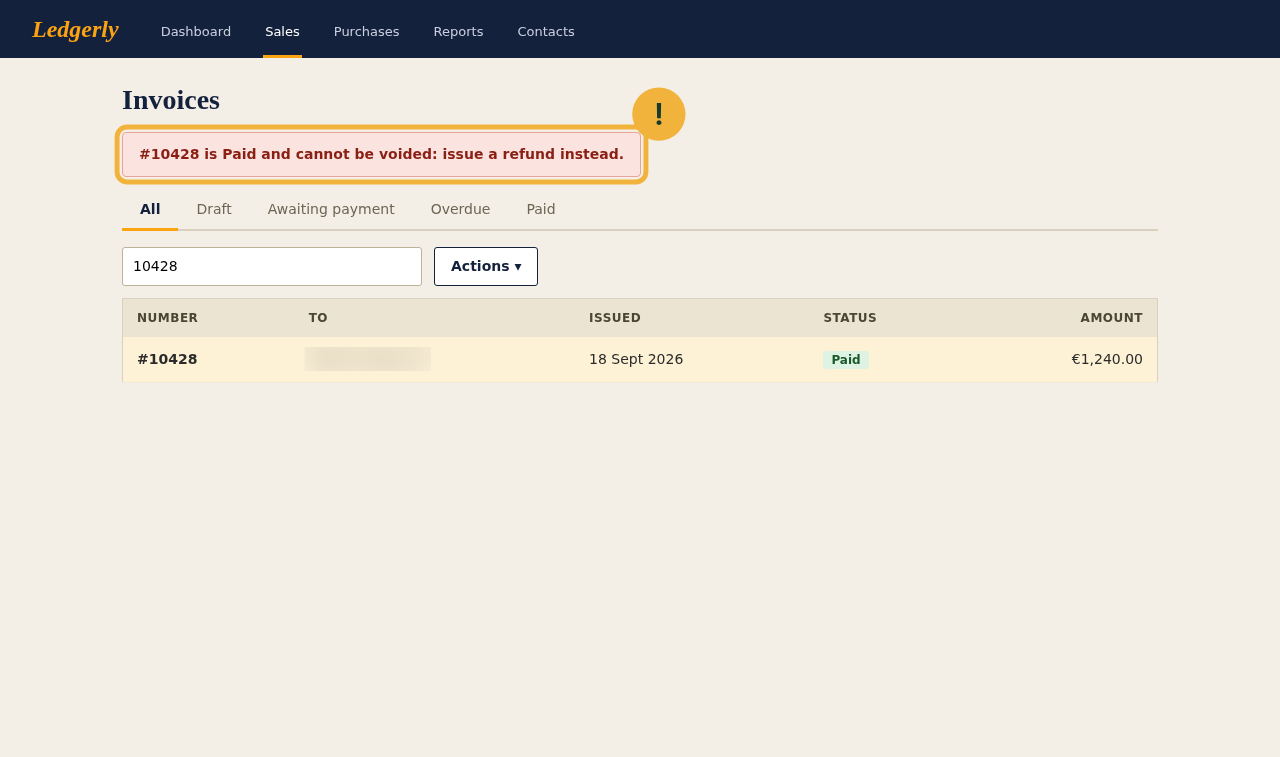
| Symptom | A red notice reads "#10428 is Paid and cannot be voided: issue a refund instead". The status still reads Paid. |
|---|---|
| Cause | The customer has paid. Ledgerly only voids invoices that were not paid. |
| What to do | Change nothing in Ledgerly. Refund the order in the payment tool, following the refund procedure. |
Glossary lines the chapter added:
- Awaiting payment: sent, not paid, not yet due. Can be voided.
- Overdue: sent, not paid, past its due date. Can be voided.
- Paid: the payment has arrived. Cannot be voided; refunded instead.
- Void: cancelled. Keeps its number and stays in the list, struck through.
Anatomy of a task section
| Part | What goes in | Why |
|---|---|---|
| Goal title | Verb first, the user's words: "Void an unpaid invoice" | Readers scan the contents for their goal, not for a menu name |
| When | One line on the situation | Stops the reader using the wrong task |
| Before you start | Role, permissions, the data needed, the state the record must be in | A missing permission found at step 4 wastes three steps |
| Steps | Numbered, one action each, location first, exact labels in bold | The reader knows where to look before what to do |
| Screenshot | Cropped to the area, one marker on the target | Only where the screen changes or the target is hard to find |
| Result | What the screen shows when it worked | The reader can tell success from a silent failure |
| If it goes wrong | The error message, linked to its troubleshooting entry | Keeps the steps short and the fixes in one place |
Finish on the result, not on the last click. Wording and step length are covered in Step-by-step instructions; cropping, marking and blurring in Screenshots for guides.
How to write a user manual
- List the users and their goals. Support tickets and onboarding questions are the source: they are in the users' words.
- Turn each goal into a task section title, verb first, and group the titles into chapters by area of work.
- Do each task once in the real product and capture it step by step, with test data.
- Write the steps from the captures. Blur or crop out personal data before anything is shared.
- Write setup from what a new account actually needed while capturing.
- Fill troubleshooting from the real errors met while capturing, then from tickets.
- Collect the glossary from the interface labels the steps use.
- Write the overview last. Only then is it known what the manual covers and leaves out.
- Test with someone who has never used the product. Watch where they stop, and fix that step.
Steps 3 and 4 take most of the time. A recorder that turns each click into a numbered step with a screenshot shortens them; with the built-in screenshot keys (Win+Shift+S, Cmd+Shift+4) the same job is one capture and one crop per step. For a long settings page, a full-page screenshot can replace several.
Software manual or product manual
The skeleton is the same. What changes is the front and the back.
- Software: system requirements, accounts, roles and permissions, and the version covered. Screenshots go stale when the interface changes, so the version line matters.
- Physical product: what is in the box and installation in setup, safety warnings in the notices and in the task where the hazard occurs, and a product appendix at the back.
For a physical product, IEC/IEEE 82079-1:2019 sets out what the instructions for use contain in its clause 7, Content of information for use. Its sub-clauses include identification of the product and of the supplier (7.2), the product description and specifications (7.8), maintenance (7.10.10), disassembly, recycling and disposal (7.10.14) and safety-related information, with safety notes and warning messages (7.11). The template's optional Appendix A collects these as one table:
- Intended use: what the product is for, and uses to avoid.
- Safety warnings: the hazard, what can happen, how to avoid it.
- Model and serial number: where they are printed on the product.
- Specifications: power, dimensions, weight, operating conditions.
- Maintenance: what the user cleans, checks or replaces, and how often.
- Disposal: how to dispose of or recycle the product and its batteries.
- Support and warranty: the supplier's name, address and contact, and the warranty terms.
The clause numbers and titles above come from the standard's contents page; what each clause requires in detail is in the standard itself.
A "personal user manual" (a "how to work with me" page about a colleague) is a different document and is not covered here.
User manual, SOP, work instruction, training manual or job aid
| Document | Reader | Organised by | Typical example |
|---|---|---|---|
| User manual | Users of a product, often customers | User goals, across the product | Ledgerly manual, chapter 4: Invoices |
| SOP | The team that carries out the procedure | One procedure: who does what, when, in which order | Refund a paid order: support up to 200 EUR, finance approves above |
| Work instruction | One person at the screen | One task, step by step | Void an unpaid invoice |
| Training manual | A new hire | A learning path, module by module | Finance desk, module 1 |
| Job aid | Someone already trained | One task on one page | Void or refund: a one-page check |
A user manual's task sections are written at the work-instruction level: one task, step by step at the screen. The same capture can serve a work instruction and a manual section; what differs is the reader and the frame around them. An SOP sits a level above: the written procedure, who does what, when and in which order. Where each document sits is in Process documentation; a manual for staff in training is a training manual, and the one-page version of a task is a job aid.
Keeping the manual current
- Versions on the title page: the manual version and the product version, with a date, and a dated change list at the end.
- Recapture, do not patch: when the interface changes, redo the affected task sections from a new capture rather than editing old screenshots.
- One owner per chapter: the person who owns that area of the product, named in the chapter header.
Sources
All pages checked on .
- Microsoft Writing Style Guide: Writing step-by-step instructions. Headings that describe what the instructions help the reader do, in parallel form; a numbered list, one step per instruction, location before action.
- IEC Webstore: ISO/IEC/IEEE 26514:2022. Scope: the development process for designers and developers of information for users of software.
- SIS: IEC/IEEE 82079-1:2019. Title and scope: principles and general requirements for instructions for use of products.
- IEC/IEEE 82079-1:2019, preview (iTeh Standards). Contents pages of the standard: clause 7, Content of information for use, with 7.2 Identifiers, 7.8 Product description, 7.10.10 Maintenance, 7.10.14 Disassembly, recycling, disposal and 7.11 Safety-related information.
- Microsoft Support: Insert a table of contents. Word builds the contents from the headings (References > Table of Contents) and updates it with Update Field.