When a step needs a screenshot
Add a screenshot when the reader has to do one of three things:
- find a control on a busy screen (an icon without a label, a menu item three levels deep);
- compare what they see with what they should see (the right record is open, the right tab is active);
- confirm a result (the dialog that opens, the "Saved" notice).
Skip it for steps like "Press Enter" or "Type the order number". A picture there adds scrolling, not information.
Opensource.com warns that a screenshot can prop up unclear writing, and suggests writing the documentation without screenshots first, adding one only where words cannot do the job. The test: cover the picture. If the step no longer makes sense, the sentence needs work, not the image.
The division of labour is one screenshot per step: the sentence carries the action, the picture shows where. How to write that sentence is its own topic: how to write step-by-step instructions.
Capture: what is in the frame
- The window, not the desktop. Capture the browser's visible page. The taskbar, other windows and the clock tell the reader nothing and date the picture.
- No full-page captures for a step. A 4000-pixel scroll of the whole page hides the button the step is about. Keep full-page captures for reference pages that describe a whole screen.
- Capture after the click. Wait until the page has settled, so the menu that opened or the dialog that appeared is in the picture.
- Use a test account. Record with dummy customers and a test user where you can. The cheapest redaction is data that was never on the screen.
- One window size and zoom level for the whole guide. Screenshots taken at 100 % and at 125 % look like two different apps side by side.
Taking screenshots in Chrome and on a Chromebook
On a Chromebook, press the Screenshot key or Shift + Ctrl + Show windows, then choose a full screen, partial or window screenshot. Screen capture is also in the settings at the bottom right of the screen, according to Google's Chromebook Help.
Chrome itself can capture a whole long page: in DevTools' device mode, the More options menu has Capture full size screenshot, as Chrome for Developers documents. It is the right tool for a reference page, and the wrong one for a step, for the reason above. How to take a full page screenshot in Chrome covers where it fails.
Crop to where the work happens
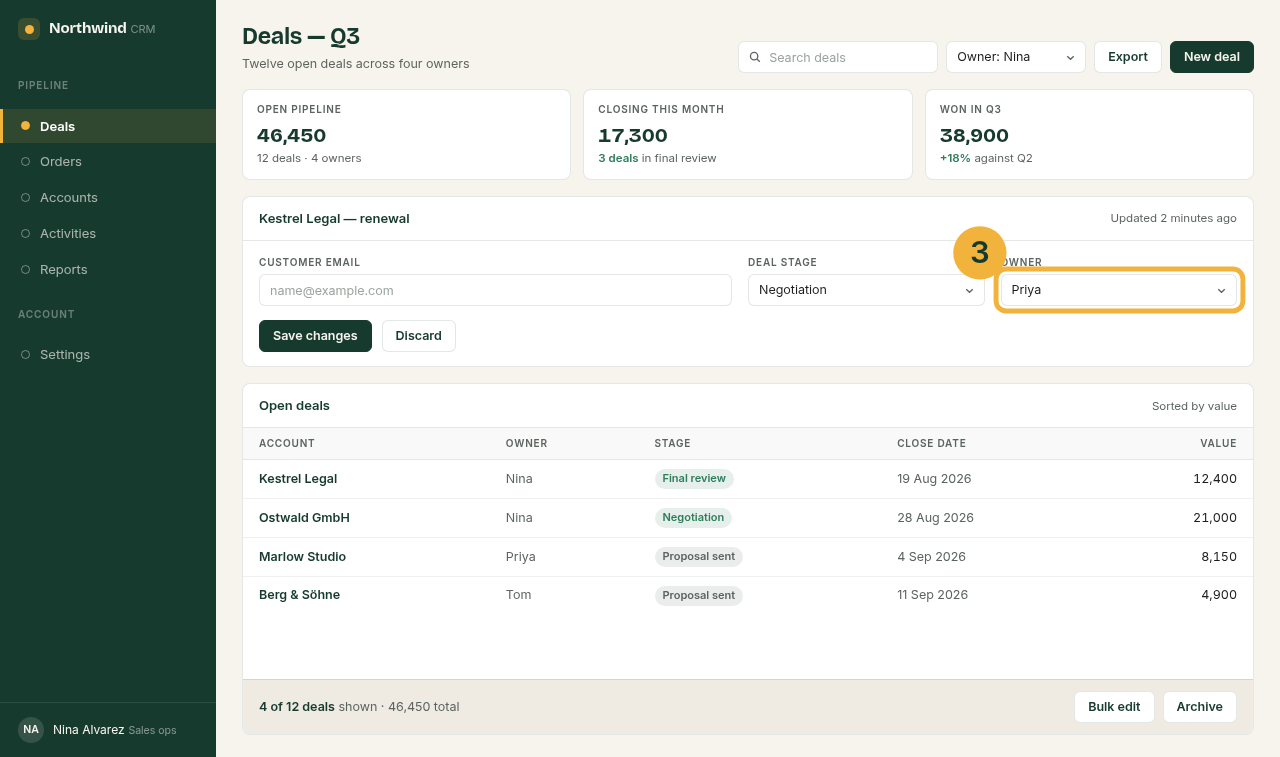
Crop to the panel the step happens in, and keep enough around it for the reader to orient: a panel heading, the edge of the sidebar, the button next to the target. Archbee puts it as "the actionable element plus just enough surrounding UI to orient the reader".
Here is the same step, from a made-up company's CRM, before and after the crop.

Two ways to overdo it:
- Cropping to the field alone. A picture of a dropdown with nothing around it could be anywhere.
- Scaling the picture down to fit the page until the labels cannot be read. Crop harder instead.
Keep the original capture. A crop you can undo lets you reframe later without doing the task again.
Mark one thing per step
- One marker per step, on the thing to click or type into. If it carries the step's number, the picture and the sentence are tied together, as the "3" in the screenshots above.
- A ring or box around the target beats an arrow from across the screen. Keep arrows for things without a clear edge, such as a gap between two columns.
- One colour and one line weight throughout the guide. A brand colour works if it stands out against the app's own colours.
- Two or three marks at most. Archbee's advice is to "limit annotations to what's essential". A screenshot that needs more marks than that is usually two steps.
- Short labels or none. The step sentence explains; the marker points.
Redact before you share
Before a guide leaves your hands, look at every screenshot for:
- customer and colleague names, email addresses, phone numbers, customer IDs;
- tokens, session IDs and search terms in the address bar;
- bookmarks, the profile picture and the other open tabs;
- notifications that slid in at the moment of capture.
Blur is not redaction for secrets
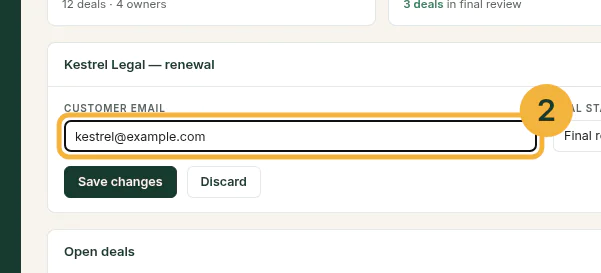
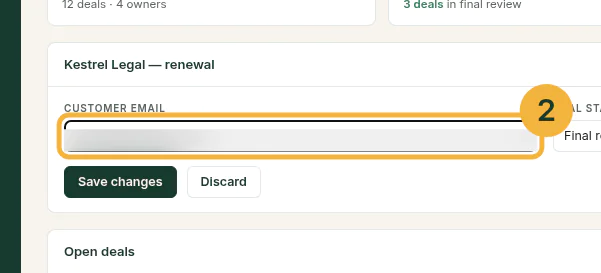
The usual advice is "blur the sensitive parts". For short text, that is not enough. In 2022 Bishop Fox published Unredacter, a tool that recovers pixelated text by guessing it character by character, pixelating each guess the same way, and keeping the one that matches. A blur is a similar filter: it smears the pixels, it does not remove them, so a short word in a known font invites the same guessing.
A working rule:
- Secrets (passwords, API keys, account and IBAN numbers, one-time codes): crop them out, cover them with a solid, opaque fill in a flattened image, or never capture them (use a test account).
- Names, faces and background noise: blur is fine. If someone guesses a customer's first name from a blurred row, little is lost.
Check what your own tool's blur does before you rely on it. If it offers a blur and no opaque box, crop or a test account is the answer for secrets.
Redact once, for every step
The same name turns up on step 2, again on step 3, and once more on step 7 in a list you did not look at closely. Redacting picture by picture is how the third one gets missed. If your tool can, draw the blur once and have it apply to every screenshot of the same screen; if not, go through the finished guide looking for each name you redacted.
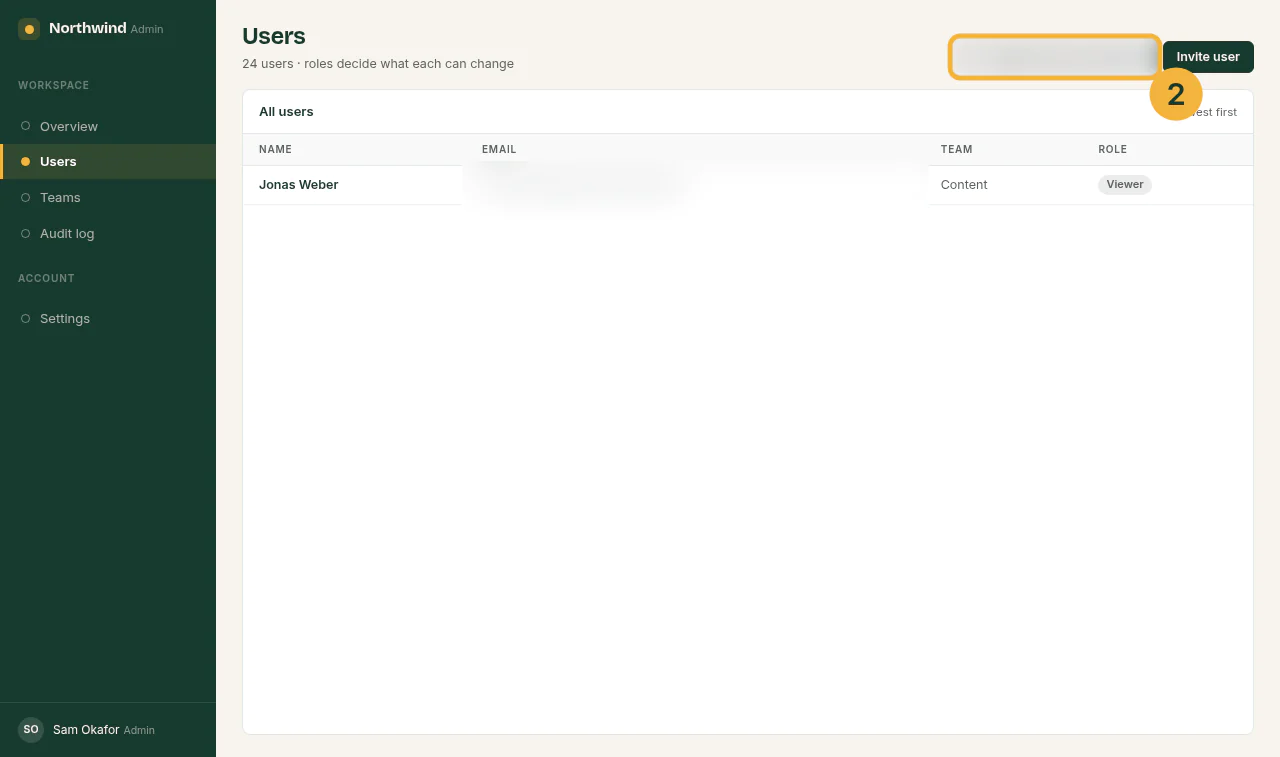
Then check the result where the reader will see it: in the exported PDF or web page, at full zoom, not in the editor. In a PDF, a black box drawn over live text can leave the text underneath selectable; only a flattened image is safe.
Name, describe and keep screenshots current
- Alt text says what the screenshot shows for this step, "Settings page, Save button marked", not "screenshot". The W3C's images tutorial asks for the information the image conveys, which is rarely a literal description.
- Filenames describe the content, as
Documatt recommends
(
disabled-save-button.png, notimage3712.jpg). Add a date or version, so stale ones can be found:billing-refund-step-3-2026-09.png. - PNG or WebP, not JPEG. Documatt's reason: lossy compression makes screenshots of text look blurred.
- A capture date and an owner in the guide. Web apps change their screens without notice; when one step's screen changes, re-capture that step, not the whole guide.
- One set per language. A German guide needs screenshots of the German interface.
Documatt suggests a language code in the filename (
save-button.de.png).
Checklist before a guide goes out
- Each screenshot is needed: the step cannot be followed from the sentence alone.
- Each is cropped to the working area, with enough context to orient, and readable at page width.
- Each has one marker, with the step's number where the tool allows.
- No name, email, ID or secret is visible that should not be; secrets are cropped or never captured.
- The redaction was checked in the exported file, at full zoom.
- All screenshots share one window width and zoom level.
- Each has alt text saying what it shows for its step.
- Filenames describe the content and carry a date or version.
- The guide names the capture date and the person who re-captures when the screen changes.
Doing it without editing every picture by hand
Capturing, cropping, numbering and redacting by hand takes longer than the task you are documenting. A click recorder, a browser extension that takes a screenshot at each click, does most of it as you work: a numbered marker on what you clicked, a crop, and a blur you draw once.
When choosing one, check four things:
- whether its blur follows the screen to later steps, or has to be drawn on each picture;
- what its blur is, and whether it has an opaque box for secrets;
- whether it captures the visible window per step or scrolls the whole page;
- where the screenshots go: if they are uploaded to a vendor's server, the redaction happens after the data has already left your machine.
Sources
All pages checked on .
- Opensource.com: When does your documentation need screenshots? Write without screenshots first; a screenshot can cover for unclear writing.
- Google Chromebook Help: Take a screenshot or record your screen. The Screenshot key, Shift + Ctrl + Show windows, and Screen capture at the bottom right of the screen.
- Chrome for Developers: Simulate mobile devices with device mode. The Capture full size screenshot command.
- Archbee: Screenshots in technical documentation. Framing with just enough surrounding UI, and keeping annotations to the essential.
- Bishop Fox: Unredacter, never use pixelation for redaction (15 February 2022). How pixelated text is recovered by guessing.
- W3C Web Accessibility Initiative: Informative images. Alt text conveys the information in the image.
- Documatt: Pictures in docs. Descriptive filenames, PNG for screenshots, and a language code per translated screenshot.