What a training manual includes
Three parts, in this order. The modules carry the weight; the parts before and after them stay short.
-
Front matter Read once, before the first module
- Who it is for
- Before you start
- Owner and review date
-
Modules, in learning order One per group of tasks
- Objective
- Tasks, each a work instruction
- Check
-
Reference Looked up, not read through
- Glossary
- Who to ask
- Change log
- Front matter: the title, who the manual is for, what they need before starting (accounts, roles, a test environment with test data), how to use it, the owner and the next review date.
- Modules: one objective in one sentence, with a verb someone can watch: "issue a full refund for a paid order", not "understand refunds". Then the tasks, then the check.
- Tasks: each one is a work instruction, how one person does one task: a title, when to do it, numbered steps, one screenshot per step, the expected result and what to do when it fails.
- Reference: a glossary of the tool's terms, who to ask about what, and a change log.
Left out on purpose: the first-week schedule, HR policies and company history. They belong in an onboarding plan, a separate document. This template covers how to do the work in the tools.
How it differs from its neighbours: an SOP fixes who does what, when and in which order. A work instruction shows one person one task, step by step. A job aid is one page used at the point of work. A training manual is many tasks, ordered for learning; where it sits among the other documents is in Process documentation.
Download the template
| Format | Blank template | Filled module |
|---|---|---|
| Word, .docx | Blank (7 KB) | Filled (215 KB) |
| OpenDocument, .odt | Blank (29 KB) | Filled (241 KB) |
| Markdown, .md | Blank (2 KB) | Filled, text only (4 KB) |
| Blank, 2 pages (43 KB) | Filled, 5 pages (330 KB) |
Replace every text in [brackets] and delete the grey hints. Copy the task block once per task and the module block once per module.
- Word: modules use the Heading 1 style and tasks Heading 2; About this manual and Reference are Heading 1 too, but they are not modules. Text with heading styles appears in Word's Navigation pane (Microsoft Support), so the pane lists the whole manual and a trainee can jump to a task. Keep headings out of tables: the pane does not show those.
- Google Docs: upload the .docx to Drive and double-click it; Drive opens it in Google Docs, and .docx is one of the formats Docs can convert (Google Docs Editors Help). The headings become the document outline.
- Markdown: one file per module fits a wiki or a git repository. A module is a
#heading and a task a##heading, levels 1 and 2 in the CommonMark spec. The title and Reference are level 1 too, but they are not modules.
A table of contents comes from the same headings. In Word, put the cursor after the title and choose References > Table of Contents (Microsoft Support); in LibreOffice, Insert > Table of Contents and Index > Table of Contents, Index or Bibliography (LibreOffice Help). A cover page is optional: one page with the title, the team, the version and the owner, before the contents.
The German page has the same files in German.
One module filled in
The filled module trains Northwind's support team, at a made-up online shop, on three tasks in three web tools: Cartwell for orders, Paynest for payments and Ledgerly for invoices. All three are demo tools built for these guides, and the screenshots are real recordings of them, with the same order numbers in every tool. The tasks come from SOP examples, written here as work instructions with a screenshot per step. Support refunds up to 200 EUR alone; above that, finance approves in the ticket first.
Objective: after this module the trainee can export last month's paid orders, refund a paid order within the 200 EUR limit, and void an unpaid invoice instead of refunding it.
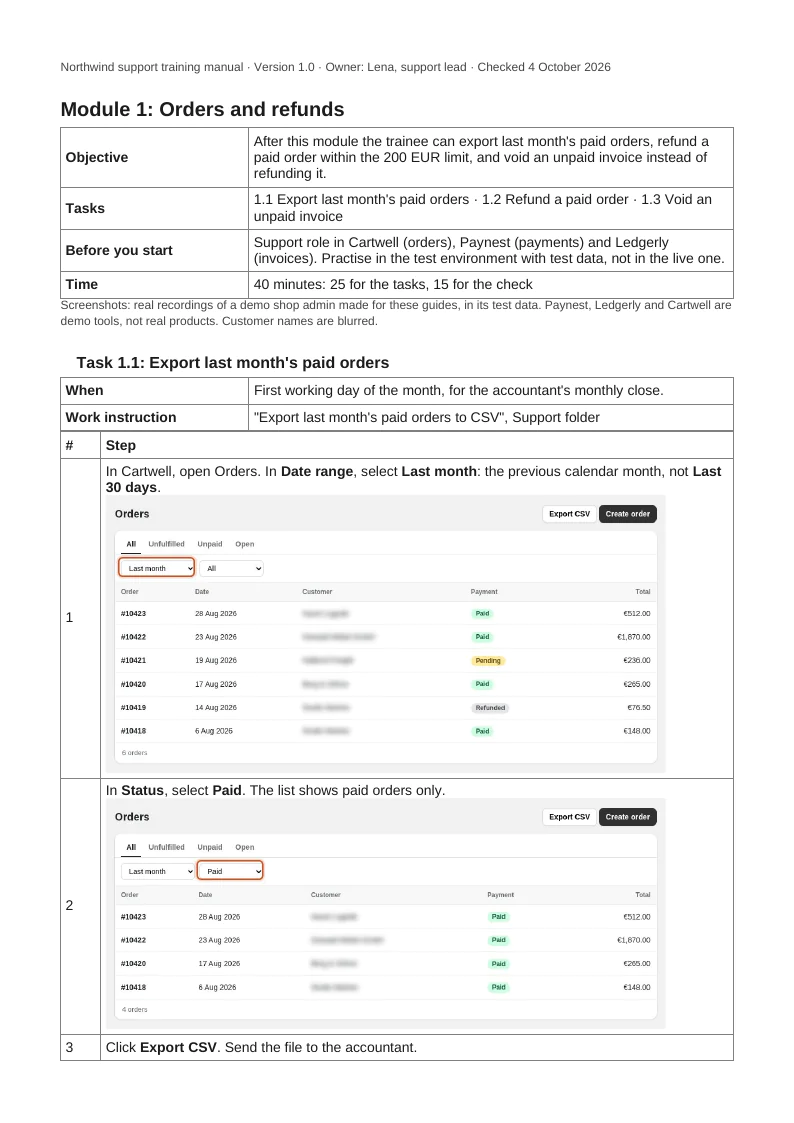
| Task | Tool | Steps | Done when |
|---|---|---|---|
| Export last month's paid orders | Cartwell | 3: Date range Last month, Status Paid, Export CSV | The banner reads "Preparing orders.csv" with the row count |
| Refund a paid order | Paynest | 5: find the order, check it is Paid (above 200 EUR: finance approval in the ticket), Actions > Issue refund, note, Save refund | "Refund saved" with the order number and amount |
| Void an unpaid invoice | Ledgerly | 4: find the invoice, check the status, Actions > Void invoice, tell the requester | "Invoice #10427 voided" |
Refund or void
Between the second and third task the module puts the one decision trainees get wrong. Paid: refund it. Overdue or Draft: nothing was paid, so void the invoice.
The check
On the test environment, without the manual open, the trainer watches and ticks each line. Pass means all four are done.
| Do this on test data | A correct result looks like |
|---|---|
| Send the accountant last month's paid orders | Filters on Last month and Paid; the export banner with the row count |
| Order 10430 (92.00 EUR) has a refund request, reason "Duplicate charge" | Status and amount checked first, then the refund saved with that note |
| Order 10428 (1,240.00 EUR) has a refund request that finance has not approved | No refund saved; approval asked for in the ticket. A refund here is a fail |
| Invoice 10427 was sent in error | Status checked, not Paid, invoice voided. A refund here is a fail |
The last two lines are the reason the check exists. A trainee who can repeat the steps but refunds 1,240 EUR alone, or refunds an unpaid invoice, has not learnt the module.
How to create a training manual from existing documents
- List the tasks the role does in its tools. Mark how often each comes up and what breaks if it is done wrong.
- Group the tasks into modules by what must be learnt first (nobody can refund an order they cannot find), then by frequency, then by risk.
- Make sure each task exists as a tested work instruction. Where one is missing, write it once by doing the task and taking a screenshot per step; the method in How to write an SOP works for it.
- Write each module's objective in one sentence with a verb someone can watch.
- Write the check as doing, not recalling: a task on test data with the expected result. Multiple-choice questions about menu names test memory of the manual, not the work.
- Test the manual with one person who has not done the tasks. Fix every place they stopped or asked.
- Name an owner and a review date in the front matter.
Screenshots in a training manual
- One screenshot per step, cropped to the area that matters, with one marker on what to click. Screenshots for guides has the rules.
- Blur customer names and emails before the manual is shared. Blur is not redaction in exported files; cropping the data out is safer.
- Record with test data, so the check uses the same orders the trainee saw in the module.
- For a long settings page, one full-page capture can replace five screen-sized ones. Full page screenshot in Chrome covers how, and where page length sets a limit.
Keeping the manual current
The usual failure: work instructions are copied into the manual, the tool changes a screen, the original gets fixed and the manual does not. Six months later the two disagree and trainees learn the old screen.
- One source per task. Either link the work instruction from the module, or rebuild the module's copy from the same recording whenever the original changes. Never edit the copy alone.
- One change log row per update: date, module, what changed.
- Review when the tool changes its screens, not on a calendar alone.
Sources
All pages checked on .
- Microsoft Support: Use the Navigation pane in Word. Headings with heading styles appear in the Navigation pane; headings in tables do not.
- Microsoft Support: Insert a table of contents. On the References tab, Table of Contents builds the contents from the heading styles.
- LibreOffice Help: Creating a Table of Contents. Insert > Table of Contents and Index > Table of Contents, Index or Bibliography.
- Google Docs Editors Help: Work with Office files. Double-clicking an Office file in Google Drive opens it in Google Docs; .docx is among the file types that can be converted to Docs.
- CommonMark Spec 0.31.2: ATX headings. One
#is a level 1 heading, two a level 2 heading.