Full page screenshot in DevTools
Chrome has no full page screenshot in its main menu. The command is in DevTools, the developer tools built into every copy of Chrome, and it needs no extension and no account.
- Open the page and scroll it once to the end and back to the top, so everything that loads on scroll has loaded (why is under Lazy images and content).
- Open DevTools: F12 or Ctrl + Shift + I on Windows and Linux, Cmd + Option + I on a Mac, per Chrome for Developers.
- Open the Command Menu with Ctrl + Shift + P, or Cmd + Shift + P on a Mac.
- Type screenshot and choose Capture full size screenshot.
- Chrome saves the PNG to your downloads folder.
The same command is in device mode (the phone and tablet icon in DevTools), in the More options menu at the top of the page, next to Capture screenshot, which takes only the visible part. Google describes both in Simulate mobile devices with device mode. Device mode is also where you set a phone width, if you want the page as a phone shows it.
The Command Menu lists two more captures: Capture area screenshot, for a box you drag, and Capture node screenshot, which photographs the element selected in the Elements panel, whole, even when it is taller than the window.
Full page screenshot on a Mac and on Windows
The command is the same on both systems; only the keys that open it differ. Neither system's own shortcuts scroll: on a Mac, Shift-Command-3, 4 and 5 take what is on the screen (see how to screenshot on a Mac), and on Windows, Print Screen and Windows + Shift + S do the same (see how to take a screenshot on Windows). For a whole web page in Chrome, use DevTools on either.
| Step | Windows | Mac |
|---|---|---|
| DevTools | F12, or Ctrl + Shift + I | Cmd + Option + I |
| Command Menu | Ctrl + Shift + P | Cmd + Shift + P |
| Then, on both | Type screenshot and choose Capture full size screenshot | |
| The file | One PNG of the whole page, in Downloads | |
Every method, in one table
| Method | How the picture is made | Good at | Breaks on |
|---|---|---|---|
| DevTools, Capture full size screenshot | Chrome lays out the page at its full height and renders it once | Clean output: sticky headers appear once, no seams | App panels that scroll inside, content that loads on scroll, very tall pages |
| DevTools, device mode with a tall custom size | You set the window to, say, 1280 by 5000 and take a normal screenshot | Web apps whose content scrolls in a panel | You have to guess the height; a full-height hero stretches with it |
| DevTools, Capture node screenshot | Renders one element, whole | One table, one card, one article column | Elements you cannot find in the Elements panel |
| A screenshot extension | Scrolls the page and joins one screenshot per screen | One click, loads lazy content by scrolling, often with an editor | Fixed bars, animations, app panels unless the tool scrolls them |
| Print, Save as PDF | Chrome lays the page out again for paper | Long text you want to search and select | Anything that must look like the screen: print styles change the layout |
The difference between the first row and the fourth explains most failures. DevTools makes the window as tall as the page and takes one picture, so the page is never scrolled. An extension can only photograph what is on screen: Chrome's tabs API gives it captureVisibleTab, which "captures the visible area of the currently active tab", at most 2 times per second. So the extension scrolls, takes a picture, scrolls again, and joins the strips. A page 20 screens long takes at least 10 seconds.
The keyboard shortcuts of the operating system are not on the list for a reason. On Windows, Print Screen takes the whole screen and Windows + Shift + S opens the Snipping Tool for a part of it, per Microsoft Support. Both photograph what is on the screen, so everything below the visible part of the page is missing.
Scrolling screenshot on a phone
Chrome on Android has no full page command of its own; the phone does it. On Android 12 and up, press the power and volume down buttons together, tap Capture more at the bottom and drag the crop guides down to where the page should end, per Google's Android Help. The rest of this guide is about Chrome on a computer.
Where a full page screenshot breaks, tested
The results below come from test pages built for each problem, captured on 30 September 2026 with Chrome 150 the way DevTools' Capture full size screenshot does it, in a window 1280 by 800 pixels. Chrome ran headless, with software rendering instead of the graphics card.
| Test page | What came out |
|---|---|
| 30,000 px of coloured bands | All 30,000 px, with software rendering. With the graphics card in use, Chrome can stop at 16,384 px (below) |
| A 60 px sticky header | Once, at the top |
| A 40 px bar fixed to the bottom of the window | Once, at 760 to 800 px: the bottom of the first screen, in the middle of the content |
| An app shell with a 5,000 px panel that scrolls inside | 800 px: the first screen of the panel and nothing below |
| A block that loads when it scrolls into view, 4,000 px down | The grey placeholder, not the content |
| A hero set to 100 % of the window height | 800 px, as on screen; it did not grow with the capture |
Very tall pages
An answer on Chromium's headless-dev mailing list explains that "the 16384px limit stems from the maximum texture size used by the compositor", the part of Chrome that draws the page with the graphics card. The limit counts pixels of the image, and on a high-density screen each pixel of the page is two or more in the image, so the cut comes earlier. Past it, the bottom of the image is cut or left empty. In the software-rendered test Chrome kept all 30,000 px, so whether a given page is cut depends on the machine. Scroll the result to its end before you rely on it. Asked about the limit, Chromium contributors point to bug 770769 in Chromium's issue tracker.
Extensions have limits of their own: a browser canvas cannot be infinitely large, so each tool stops or scales the picture down somewhere. The number is usually in the tool's help pages.
Repeated headers in a full page screenshot
A header repeated down the image comes from stitching. A tool that scrolls and photographs the page screen by screen catches everything fixed to the window on every screen, so a sticky header shows up once per strip, unless the tool hides it after the first one. DevTools renders the page once at its full height, so the same header appears once, at the top, where it belongs.
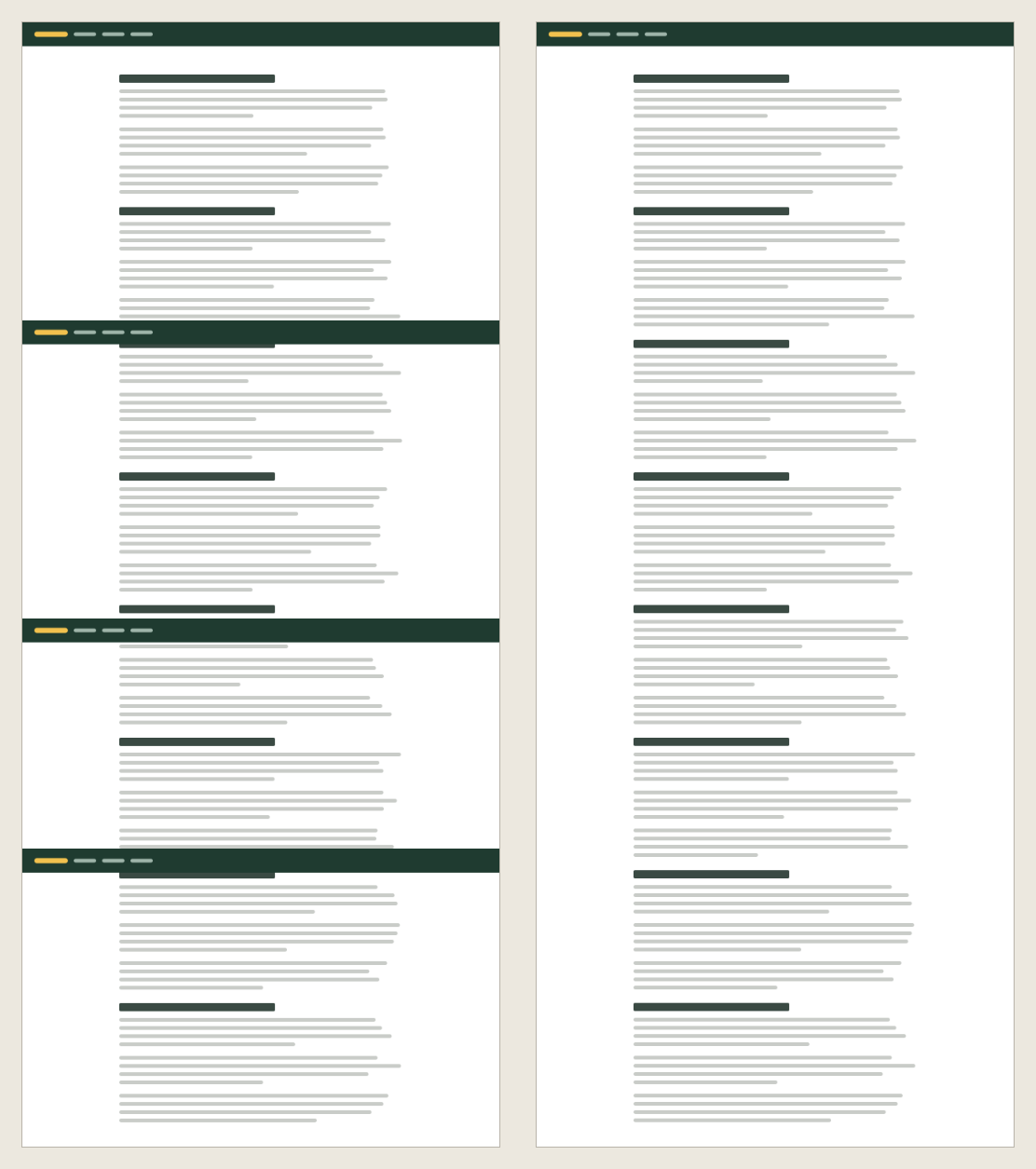
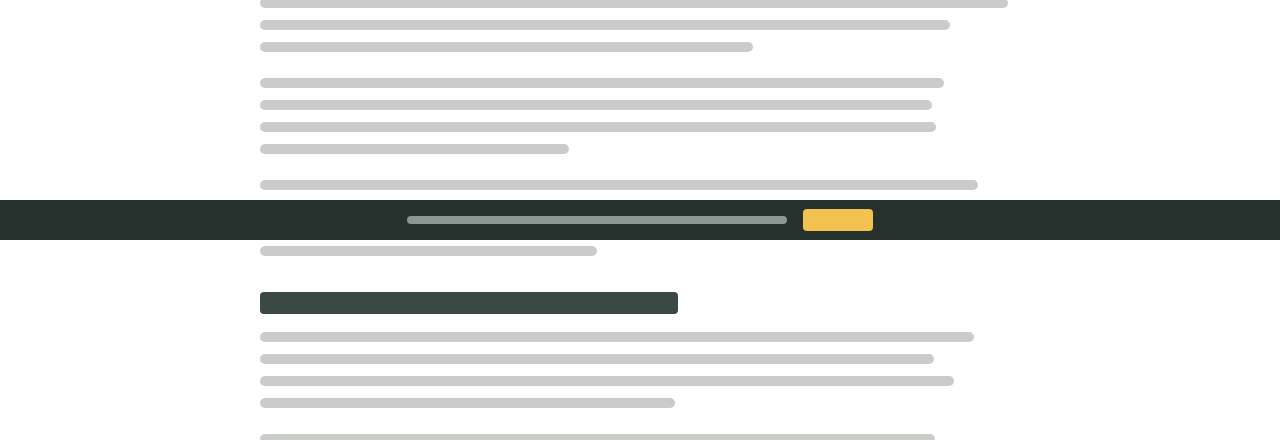
A bar fixed to the bottom of the window, such as a cookie banner or a chat button, behaves differently in DevTools: it stays where the bottom of the first screen was, 760 to 800 px down in the test, and covers the content there. To get rid of either, select the element in the Elements panel and press H to hide it, then capture.
Web apps that scroll inside a panel
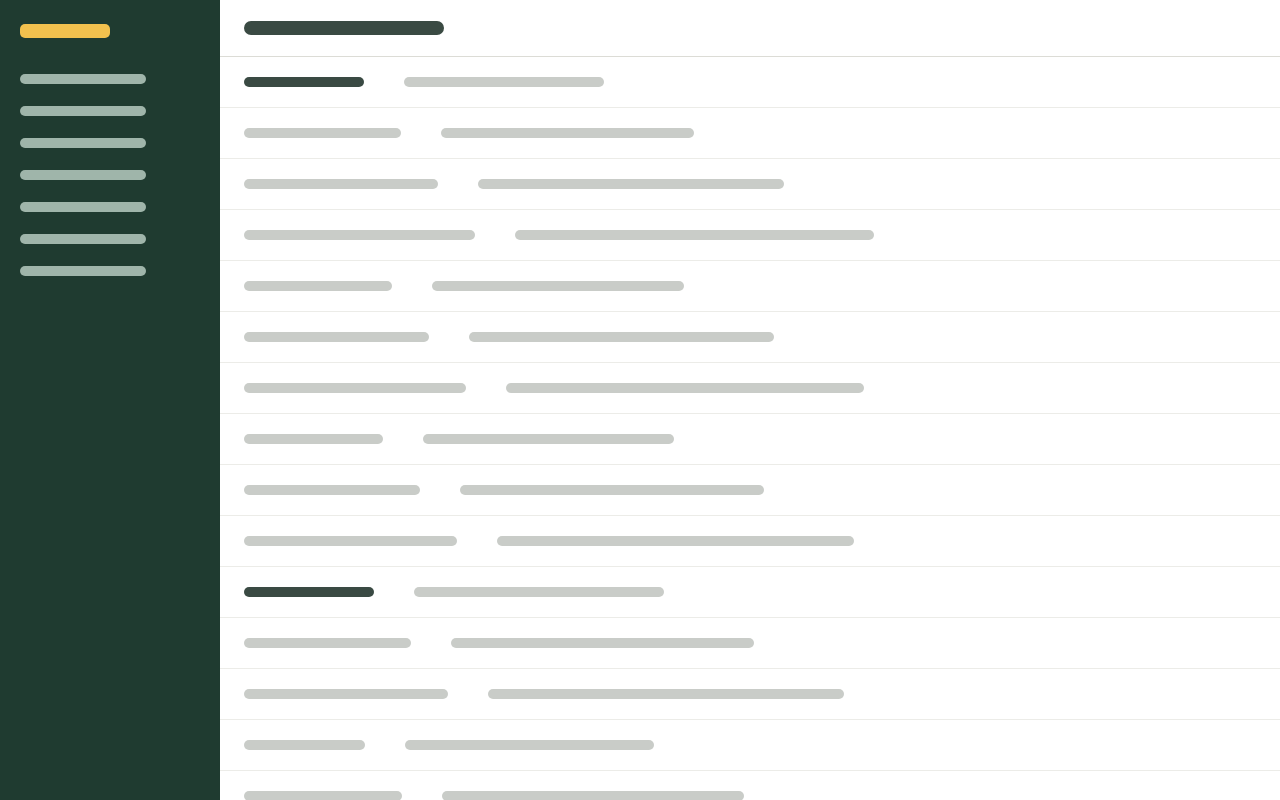
Admin panels, CRMs, webmail and dashboards often keep the page itself at window height and scroll a list or a main panel inside it. To Chrome the page is one screen tall, so a full page screenshot is one screen tall: in the test, 800 px of a 5,000 px panel. An extension that scrolls the page has the same problem unless it finds the panel and scrolls that instead. Pages inside an iframe and content that scrolls sideways fail the same way.
Lazy images and content
Many pages load images and sections only when they scroll into view. DevTools does not scroll, so what has not loaded yet is missing from the picture: in the test, the block 4,000 px down was still its grey placeholder. Extensions scroll, which gives the page the chance to load, as long as each step waits long enough. With DevTools, scroll to the end of the page and back before you capture.

Animations and changing content
A picture joined from strips shows each strip at a different moment. A carousel, a ticker or a counter can look broken at a seam. DevTools' single render does not have this problem.
Fixes for each problem
- Content that loads on scroll: scroll to the end of the page and back to the top, then capture. In the test the placeholder then came out as the loaded content.
- An app panel that scrolls inside: in device mode, set a custom size as tall as the panel's content, for example 1280 by 5000, and use Capture screenshot. In the test that showed the whole 5,000 px panel. If the panel is one element, Capture node screenshot on it is quicker.
- A fixed bar covering content: in the Elements panel, select the bar and press H to hide it, then capture.
- A page taller than the limit: capture it in parts with Capture area screenshot, or use Print, Save as PDF if the text matters more than the look.
- A phone view: pick a device in device mode first; the full size screenshot is then taken at that width.
When a full page is the wrong screenshot
Each step of a how-to guide is about one click. The reader looks for the button or field in the picture, and in a 4,000 px image of the whole page that button is a few pixels in a long strip. Even one full window is a lot to search, as the first picture below shows; the step needs the panel where the click happens, cropped close, with the target marked.
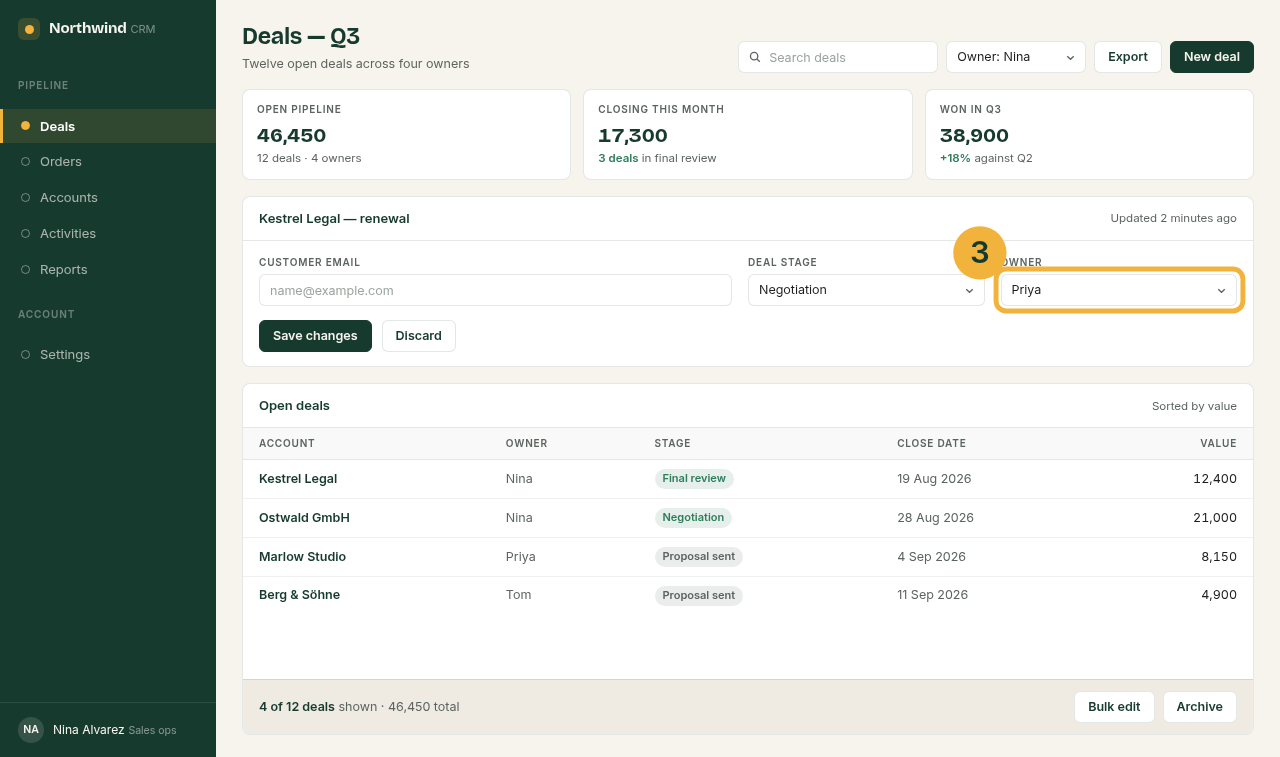

A full page fits other jobs: a reference page that describes a whole screen, a design review where the layout is the subject, or a record of a page as it looked on a given day.
- Once, for a long article or a landing page: DevTools. It is already installed and the output is clean.
- Often, or for people who never open DevTools: an extension. Check where it keeps your screenshots before you use it on internal pages; some upload every capture to their own servers.
- A step in a how-to guide: usually not a full page at all, but a crop of the window, as Screenshots in documentation explains.
Before you share a whole page
A full page screenshot holds everything the page holds, including what nobody looked at below the fold: customer names in a list, an email address in a footer, an order total. Scroll through the whole image before you send it, and cover what the reader does not need with an opaque box. A blur can sometimes be undone; Redact before you share covers which method holds.
Screenshot shortcuts on one page
The shortcuts for Windows 11, the Mac and a Chromebook, and the steps for a full page in Chrome, fit on one printable sheet: PDF, A4, PDF, US Letter or Markdown for a wiki. Each shortcut on it is the one stated, with its source, in the guide for that system.
Sources
All pages checked on .
- Chrome for Developers: Open Chrome DevTools. The keyboard shortcuts that open DevTools on Windows, Linux and Mac.
- Chrome for Developers: Simulate mobile devices with device mode. Capture screenshot and Capture full size screenshot in the More options menu, and the Command Menu shortcut.
- GoogleWatchBlog (2022, in German): taking screenshots in Google Chrome. The command's names, full size screenshot in English and Screenshot in voller Größe aufnehmen in German.
- Chrome for Developers: chrome.tabs API. What captureVisibleTab captures, and the limit of 2 calls per second.
- Chromium headless-dev mailing list: the maximum screenshot height of 16384 px. The 16,384 px limit and its cause, the compositor's maximum texture size.
- Chromium bug 770769: the 16384 px limit. The issue Chromium contributors point to for the limit (the tracker asks for a sign-in).
- Microsoft Support: Use Snipping Tool to capture screenshots. What Print Screen and Windows + Shift + S capture.
- Android Help: Take a screenshot or record your screen on your Android device. The scrolling screenshot with Capture more, on Android 12 and up.