The short answer
- Use a numbered list, one action per step.
- Start each step with a verb: "Click", "Type", "Select".
- Name the label exactly as the screen shows it, in bold.
- Say where before what: "In Status, select Overdue."
- After a step that changes something, state the result.
- Put a warning at the start of the step it concerns, not after it.
Then hand the steps to someone who has never done the task, and watch. The rest of this page shows each rule at work on ten steps from a real recording.
10 captions from a real recording, before and after
The task: look up an overdue order in Northwind Billing (a made-up company's admin panel) and refund it. It was done once with a click recorder switched on. A recorder watches each click and writes one line per click, from whatever label it finds on the element.
The second column is what the recorder wrote, word for word. The third is the rewrite. The last names the rule that fixed it.
| # | Recorder wrote | Rewritten | Rule |
|---|---|---|---|
| 1 | Click Orders | In the sidebar, click Orders. | Say where |
| 2 | Select Status | In Status, select Status: Overdue. | Say what to pick |
| 3 | Type in Search orders | In Search orders, type the order number from the customer's email, for example 10427. | Say what to type |
| 4 | Click 18,204.00 | (deleted) | Cut the noise |
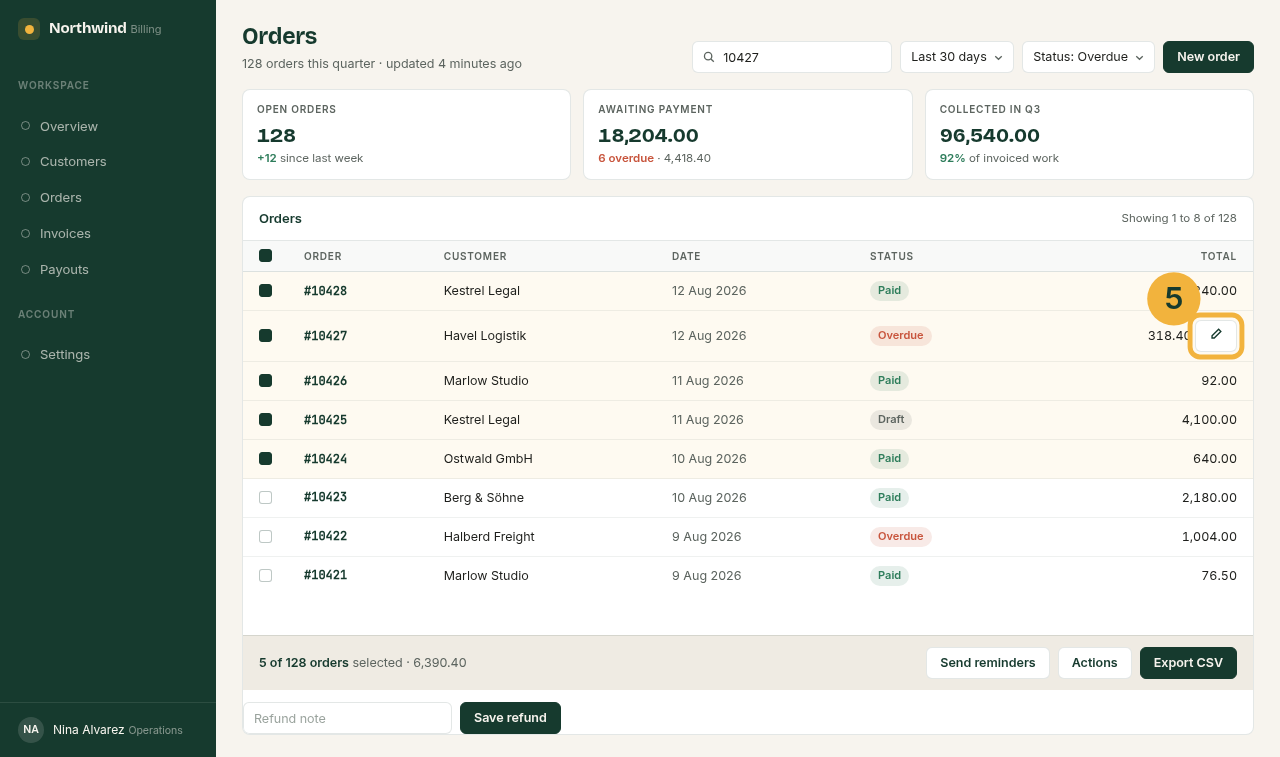
| 5 | Click the button in Orders | In the row for that order, click the pencil icon at the right. | Name the label |
| 6 | Click Actions | (merged into the next step) | One menu path |
| 7 | Click Issue refund | Check the order number and amount first: a refund cannot be taken back. Select Actions > Issue refund. | Warning first |
| 8 | Type in Refund note | In Refund note, type the reason from the request, for example "Duplicate charge". | Say what to type |
| 9 | Click Export CSV | Click Export CSV. orders.csv downloads with one row per ticked order. Attach it to the request. | State the result |
| 10 | Click Save refund | Click Save refund. "Refund saved" appears under the table with the order number and amount. | State the result |
Ten recorded clicks became eight steps. Every recorded line was already a command with a verb. What was missing is what a recorder cannot know: the value to type, the result to expect, the warning, and whether a click mattered at all.
The rules, one per fix
Each rule below names the rows of the table it fixed.
Start with the verb
Write each step as a command: "Click Save", not "The record should then be saved". Google's developer style guide asks for an imperative verb in each step, and Microsoft's style guide says the same.
The one exception is a short location phrase before the verb: "On the Orders tab, click Export CSV." All ten recorded lines already started with a verb; the rewrites kept it.
One action per step
Two verbs in one step usually mean two steps. The exception both style guides allow: menu picks in a row, written with ">", as in Actions > Issue refund (rows 6 and 7).
Use ">" sparingly. Microsoft notes that screen readers may skip the bracket and read the path as one run of words.
Name the label exactly
Copy the label as the screen shows it, same spelling and case, in bold, so the reader can match it at a glance. Microsoft's style guide bolds UI labels in documentation.
An icon without a label needs a description: its shape and where it sits (row 5). And say where before what, so the reader looks in the right place first: "In the sidebar, click Orders" (row 1).
Say what to type or pick
"Type in Search orders" is only half a step. Add the value, or where it comes from, and an example (rows 3 and 8). For a list, name the option to pick, not only the list (row 2).
State the result
Action first, result second, in the same step, as Google's guide puts it: "Click Save refund. 'Refund saved' appears under the table" (rows 9 and 10).
Do this after steps that change something: a save, a download, a new screen. Narrating every click makes the list longer, not clearer.
Put the warning before the step
People act as they read. A caution placed after "Click Issue refund" arrives once the money has gone. Put it at the start of the step it concerns (row 7).
Keep warnings rare. Google's guide on notices warns that several on one page lose their visual distinctiveness. Anything the reader needs before they start (access, the order number) goes above step 1, not inside a step.
Cut the noise
A recording keeps every click, including the ones that did nothing. Row 4 was a click on a total in the summary cards. Delete stray clicks, repeated clicks and scroll-only steps.
Merge two steps only when they are one action in one place, such as a menu path.
Before step 1 and after the last step
- Title as a task, verb plus object: "Refund an overdue order".
- When to use it, in one sentence.
- Prerequisites: the access needed and the data to have ready, such as the order number.
- The steps.
- The end result: what done looks like, and what to do if it does not appear.
End on the action that completes the task (Save, OK, Apply). Microsoft's guide says to include it most of the time. For the other parts of a full procedure (owner, version, review), see What an SOP is.
Capture the clicks, then write
Write from a recording or from notes taken while doing the task, not from memory. Memory skips the steps that have become automatic, and those are the ones a new person needs.
A click recorder, or screenshots taken as you go (Win+Shift+S on Windows, Cmd+Shift+4 on a Mac), gives you the order of clicks and the exact labels. It does not give you the values, the results, the warnings or the judgement of which clicks were noise. That part is the writing, and it is what the table above shows.
Checklist before you share it
- Every step starts with a verb, or with a location and then a verb.
- Each step has one action, or one menu path.
- Every label matches the screen today, in bold.
- Every value to type or pick is given, with an example.
- Steps that change something say what the reader should see.
- Each warning comes before the step it concerns.
- Someone new followed it while you watched, without help.
Sources
All pages checked on .
- Google developer documentation style guide: Procedures. Imperative verb in each step, one step per action, menu paths with ">", location before action, action then result.
- Microsoft Writing Style Guide: Writing step-by-step instructions. Imperative verb, a separate step per instruction, the completing action, ">" and the screen-reader note, bold labels in the examples.
- Microsoft Writing Style Guide: Formatting text in instructions. UI labels in bold in documentation; no bold in the UI itself or in marketing.
- Google developer documentation style guide: Notices. Too many notices lose their distinctiveness; information needed first goes before the step.