The short answer
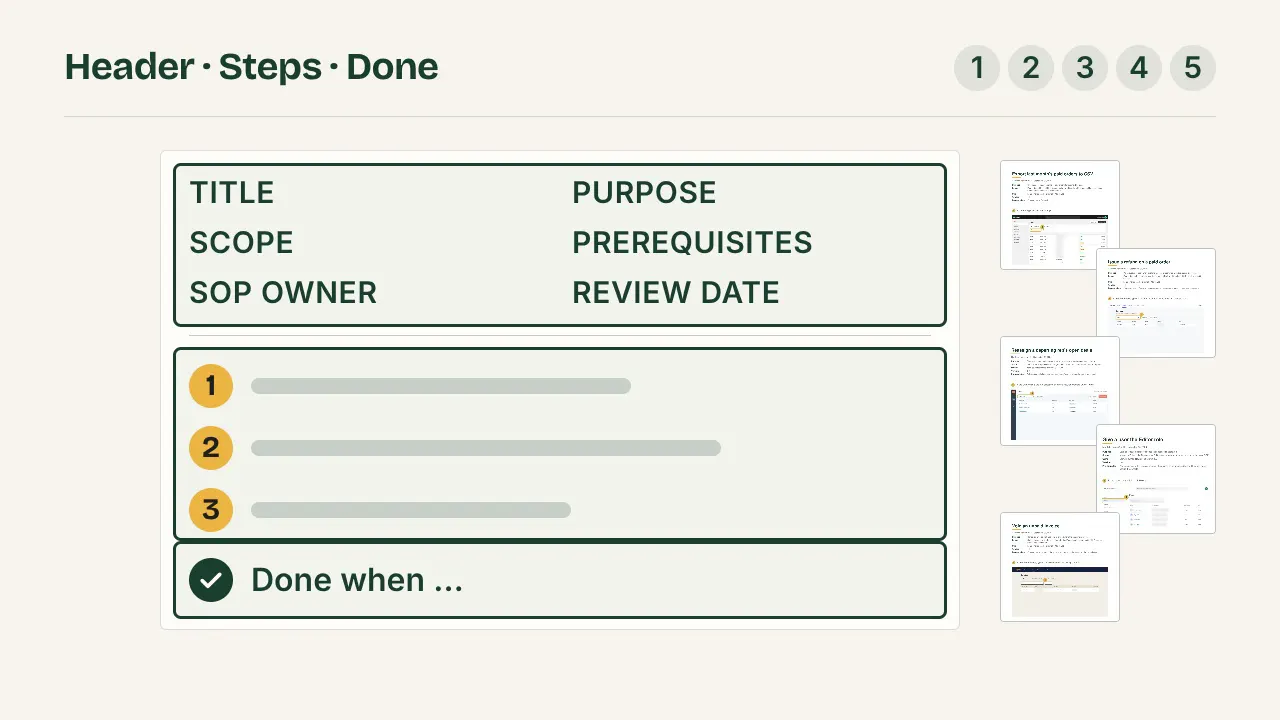
A good SOP for a software task fits on one or two pages. It has a short header (title, purpose, scope, owner, prerequisites, review date), numbered steps that each name one action and what you see after it, a screenshot where the screen changes, and a line that says when the job is done.
Examples 1 to 5 are ordered shortest first. They run in five made-up web apps built for this site, each in its own style: a shop admin, a payments dashboard, a CRM, a directory console and an accounting tool. Examples 6 to 8 are everyday admin tasks: offboarding a user in the Microsoft 365 admin center, adding a user in Google Workspace and resetting a password. Every label in the steps matches a real screen. Looking for a statement of purpose for a university application? That is a different SOP, and not this page.
Each SOP here is a finished document, not a sketch of one. For examples 1 to 5 the task was done once in the working demo app with a click recorder on, the recording was edited into the SOP shown, and the result was exported to PDF. The PDF is attached under each of them: open it to see the whole document, headers, numbered steps and blurred screenshots included, and keep it as a model for your own. Examples 6 to 8 run in Microsoft's and Google's own consoles, so their labels are taken from the vendors' help pages, listed under Sources.
What every example has in common
All eight use the same header, so you can compare them; the steps are where they differ. The header answers the questions a reader has before step 1: is this my task, and do I have what I need?
- Title: the task as verb and object.
- Purpose: why the task exists, in one sentence.
- Scope: when to use it, and when not.
- SOP owner: the person who keeps it correct.
- Prerequisites: access, data and approvals needed first.
- Review date: when someone checks it against the screens again.
These are the standard parts. The EPA's guidance on SOPs (QA/G-6) suggests an administrative SOP start with its purpose and an applicability/scope section, then cover the procedure itself and references, and the Penn State Extension writing guide asks for "a clear and descriptive title", the person responsible and the effective date. The full list of parts, and a blank SOP to copy, is in What is an SOP.
Example 1: Export last month's paid orders
Three steps in Cartwell, a shop admin. The shortest SOP a team is likely to keep.
- Title
- Export last month's paid orders to CSV
- Purpose
- Give the accountant one file of paid orders for the monthly close.
- Scope
- Paid orders of the previous calendar month, on the first working day of the month. Not for pending orders: those go to the reminders SOP.
- SOP owner
- Lena, finance lead. Review: 31 March 2027
- Prerequisites
- Finance role in Cartwell.
- Steps
-
- In Date range, select Last month.
- In Status, select Paid. The list shows paid orders only.
- Click Export CSV. A banner at the top of the page reads Preparing orders.csv with the number of rows. Send the file to the accountant.
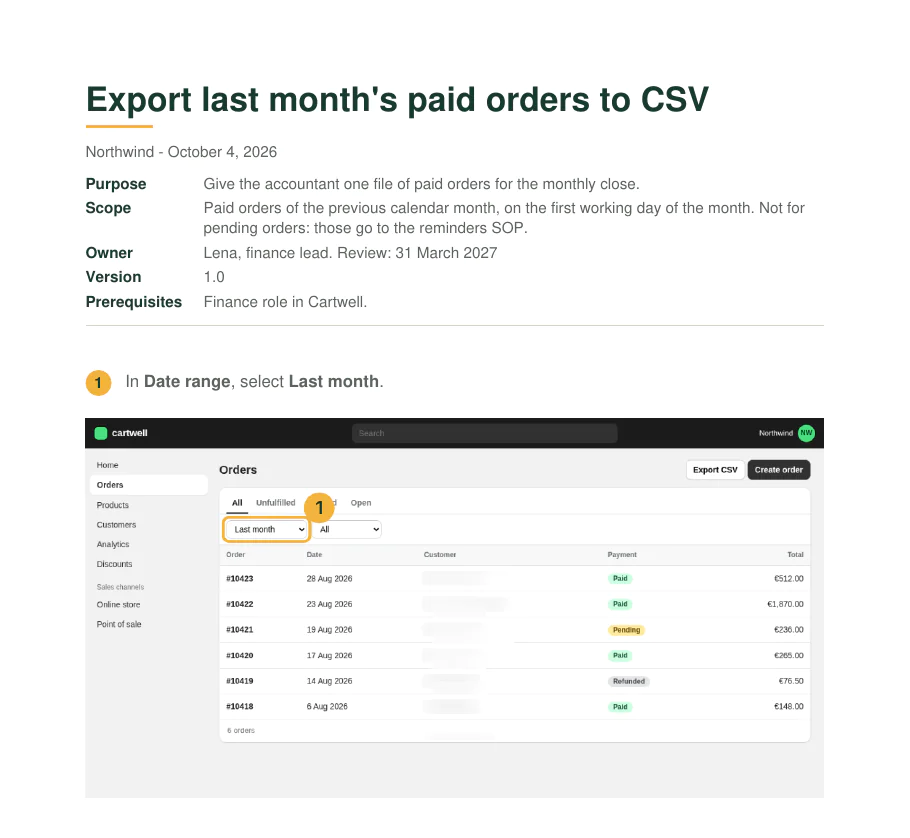
The choice it shows: a scope line, even for three steps. The steps say which buttons to press; only the scope says which orders count and who the file is for. Without it, the next person exports "This quarter" with pending orders included, and every step was still followed.
Example 2: Issue a refund
Paynest, a payments dashboard, with a step that cannot be taken back.
- Title
- Issue a refund on a paid order
- Purpose
- Pay a customer back when a refund request is approved, with the reason on record.
- Scope
- Paid orders only. For an order that is not paid yet, void the invoice instead (example 5).
- SOP owner
- Lena, finance lead. Review: 31 March 2027
- Prerequisites
- Payments role in Paynest; the approved request with the order number and the reason.
- Steps
-
- In Search orders, type the order number from the request, for example 10428.
- Click the order's row. Its details open on the right: check that the customer and the total match the request, and the status is Paid.
- In the details, select Actions > Issue refund.
- In Refund note, type the reason from the request, for example "Duplicate charge".
- A saved refund cannot be taken back. Check the order number once more, then click Save refund. "Refund saved" appears at the bottom left with the order number and the amount.
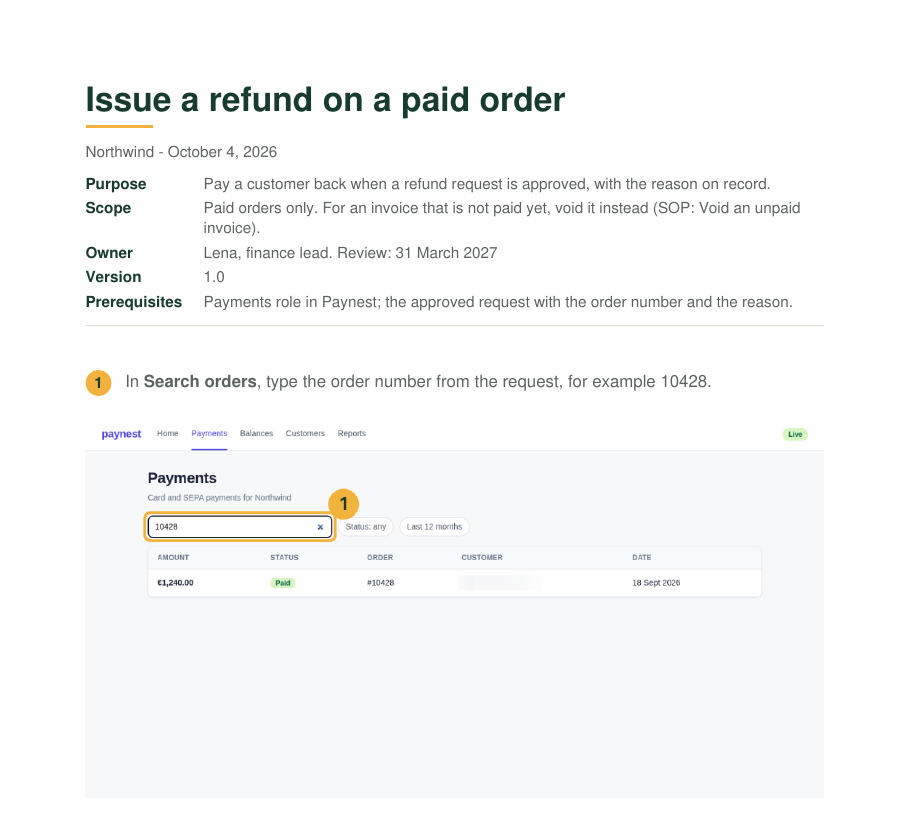
The choice it shows: the warning comes before the step it is about. A warning after Save refund is read once the money is gone. The EPA guidance says the same of cautions: listed up front, before the steps, "and at the critical steps in the procedure".
The screenshots for this SOP show the customer's name and the request email in the browser. Blur them in the SOP itself before it is shared, rather than trusting each reader to crop: an SOP gets pasted into tickets and wikis far from the people it was written for.
Example 3: Reassign a deal when a rep leaves
Dealflow, a CRM. Rare, so nobody remembers it; that is when an SOP pays.
- Title
- Reassign a departing rep's open deals
- Purpose
- Give every open deal a new owner, so no customer waits on an empty inbox.
- Scope
- Use it when a rep leaves or changes team (the trigger). Not for moving a single deal on request.
- SOP owner
- Tom, sales team lead. Review: 31 March 2027
- Prerequisites
- Sales ops role in Dealflow; the new owner's name, agreed with the team lead.
- Steps
-
- In the Owner list at the top, select the departing rep, for example Owner: Nina.
- Open the rep's first deal. The deal window shows the account name at the top.
- If Deal stage shows Closed won, do not reassign it: tell the sales lead and go to the next deal.
- In the deal window, in Owner, select the new owner, for example Priya. The field shows Priya.
- Click Save changes. "Deal updated." appears beside the button.
- Repeat steps 2 to 5 for each deal that still shows Nina. Done when no open deal shows her as owner.
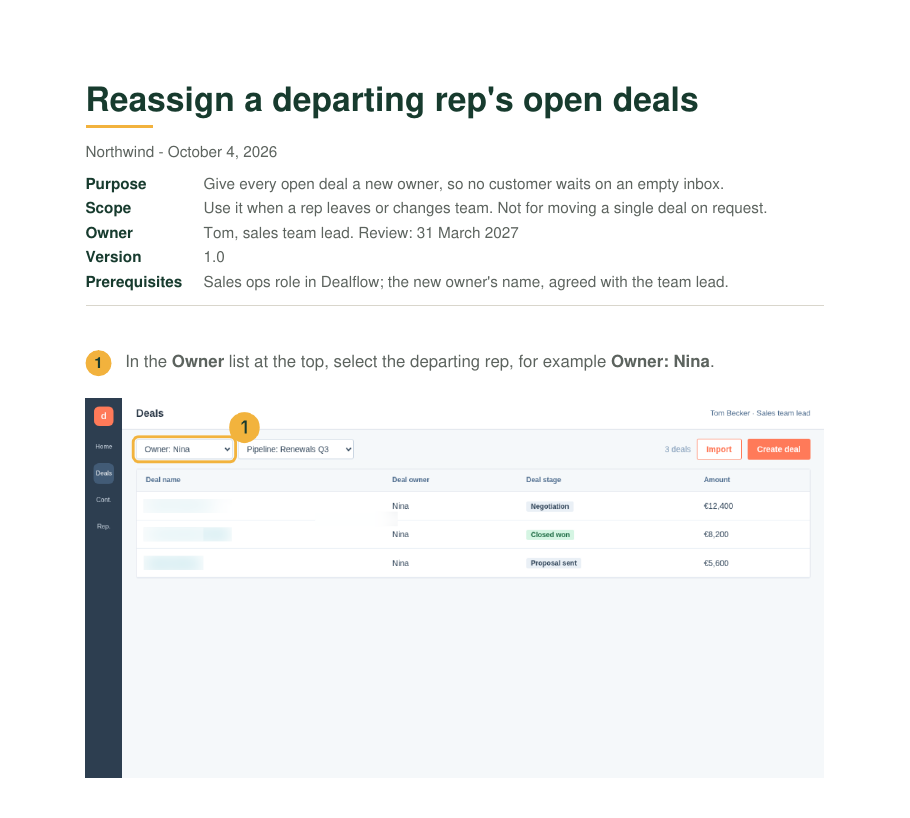
The choice it shows: a trigger and a stop condition. The scope names what starts the task; step 3 names when to stop. The exception is one sentence, "If …, then …", inside the step where the reader meets it. A branch diagram for a single exception is more to read than the exception itself. How this SOP was made from the recording is shown step by step in How to write an SOP.
Example 4: Give a user the Editor role
Corpdir, a directory admin console, where one wrong click gives someone too much access.
- Title
- Give a user the Editor role
- Purpose
- Let a colleague edit records once their access is approved.
- Scope
- Viewer to Editor only. Roles above Editor need a second approval and have their own SOP.
- SOP owner
- Sam, IT owner. Review: 31 March 2027
- Prerequisites
- Admin account in the Corpdir console; the access ticket approved by the IT owner, open beside the console.
- Steps
-
- In the menu on the left, click Users.
- In Search by email, type the colleague's email from the ticket. Only their row stays in the list.
- Click the colleague's name. Their user page opens.
- In Role, choose Editor.
- Click Save changes. A message at the bottom left reads "Role updated".
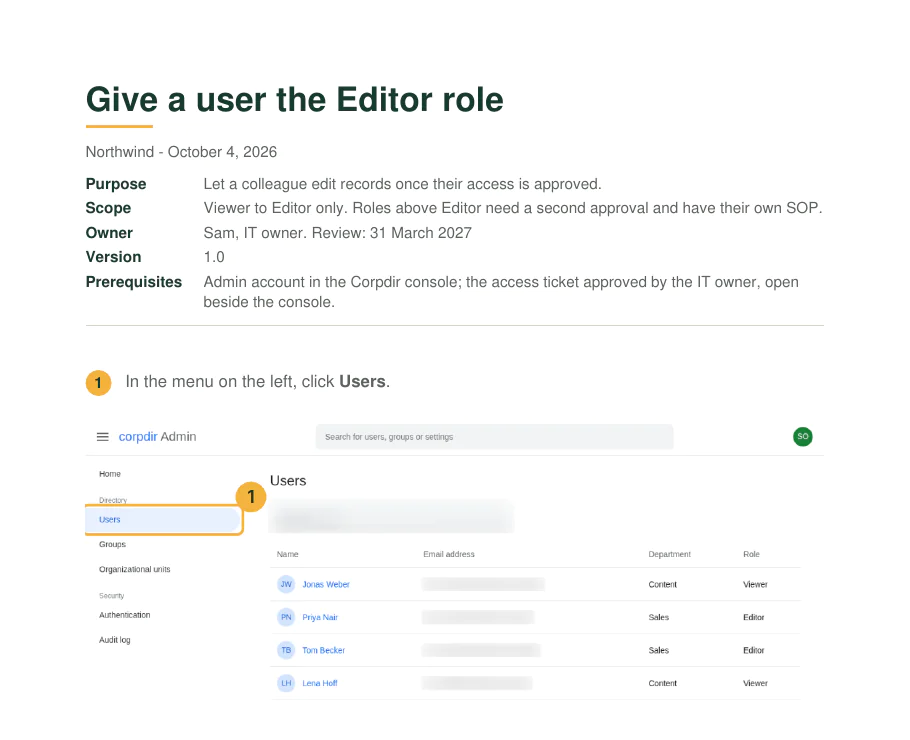
The choice it shows: approval as a prerequisite, not as step 1. "Ask your manager" as a step turns a two-minute task into a wait in the middle of the SOP. In the header, it names who approves and where the ticket is, and the steps start only once it exists. The same task written as a process, an SOP and a work instruction is in SOP vs work instruction.
Example 5: Void an invoice instead of refunding it
Ledgerly, an accounting tool, and a decision that sits in front of example 2.
- Title
- Void an unpaid invoice
- Purpose
- Cancel an invoice that was sent in error, before the customer pays it.
- Scope
- Status Overdue or Draft: void it here. Status Paid: do not void, refund it (example 2).
- SOP owner
- Lena, finance lead. Review: 31 March 2027
- Prerequisites
- Finance role in Ledgerly; the invoice number and who asked for the cancellation.
- Steps
-
- In Search invoices, type the invoice number, for example 10427.
- Click the invoice's row and check its status. If it is Paid, stop and use the refund SOP.
- Select Actions > Void invoice. A green notice reads "Invoice #10427 voided".
- Tell the person who asked that the invoice is void, with the invoice number.
- References
- Example 2, Issue a refund on a paid order.
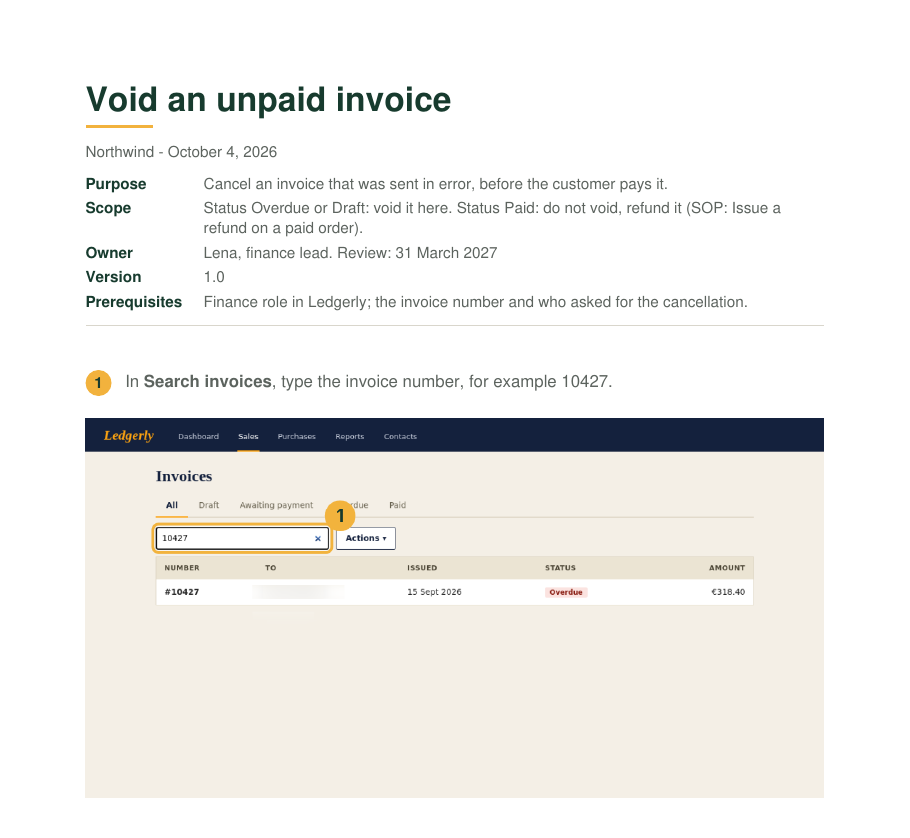
The choice it shows: the decision first, and two SOPs that point at each other. One SOP for "refund or void" would carry two scopes and two sets of steps. Two short ones, each naming the other in its scope, stay easy to follow. The EPA guidance asks for exactly this in the references: "related SOPs" named there, including the version.
Example 6: Offboard a user in the Microsoft 365 admin center
The first hour after someone leaves, in a real console. The labels follow Microsoft's own help pages.
- Title
- Block a leaver's Microsoft 365 account
- Purpose
- Stop a former employee from signing in on their last day, before anything else is handed over.
- Scope
- Use it on the leaving date HR confirms (the trigger). Mailbox, OneDrive and licence follow in the second offboarding SOP. Accounts synced from a local Active Directory are disabled there, not here.
- SOP owner
- Sam, IT owner. Review: 31 March 2027
- Prerequisites
- User Administrator or Helpdesk Administrator role in Microsoft 365 (Global Administrator if the leaver is an admin); the HR ticket with the leaver's name and last day.
- Steps
-
- In the Microsoft 365 admin center, go to Users > Active users.
- Reset the password before you block: a block can take up to 24 hours, a new password counts at once. Select the leaver's name, then Reset password. Choose whether to have the password created automatically, select Reset password, then Close. Do not print or send the new password: nobody needs it.
- Select the name again. On the Account tab, select Sign out of all sessions. Within an hour the leaver is asked to sign in again.
- Select Block sign-in. On that page, select Block this user from signing in, then Save changes.
- Note the time of steps 2 to 4 in the HR ticket and pass it to the owner of the second offboarding SOP. Done when the ticket shows all three.
The choice it shows: the order of the steps, with its reason in the step. Blocking sign-in looks like the obvious first move, but Microsoft says a block "can take up to 24 hours to take effect" and that resetting the password is what stops sign-in at once. An SOP that lists the three actions without that reason gets reordered by the first person who thinks blocking is quicker.
Example 7: Add a new user in Google Workspace
The Google Admin console, and the first day of whoever replaces the leaver. The labels follow Google's help page.
- Title
- Create a Google Workspace account for a new starter
- Purpose
- Give a new starter a working account on their first day, in their team's organizational unit.
- Scope
- Staff and contractors with a signed contract. Not for shared mailboxes or service accounts.
- SOP owner
- Sam, IT owner. Review: 31 March 2027
- Prerequisites
- An admin account with the user management privilege in the Google Admin console; the onboarding ticket with name, start date, team and a private email address.
- Steps
-
- In the Admin console, go to Menu > Directory > Users.
- At the top of the user list, click Add new user.
- Fill in First and last name and Primary email as firstname.lastname. In Secondary email, enter the private address from the ticket.
- Click Manage user's password, organizational unit, and profile photo, and choose the team's organizational unit from the ticket.
- Click Add New User. Click Preview And Send, send the details to the private address, then click Done. Done when the new name is in the user list.
The choice it shows: the SOP decides what the screen leaves optional. Google's form marks the secondary email as recommended and the phone number as optional, and puts the organizational unit behind a link. Copied as it stands, every admin decides those three again, and no two new starters are set up the same. Steps 3 and 4 make the decision once.
Example 8: Reset a user's password
An everyday help-desk ticket, again in the Microsoft 365 admin center.
- Title
- Reset a user's Microsoft 365 password
- Purpose
- Get a locked-out colleague signed in again without handing the password to the wrong person.
- Scope
- A colleague who cannot sign in and cannot use self-service password reset. Not for admin accounts: those go to the IT owner. For a leaver, use example 6.
- SOP owner
- Sam, IT owner. Review: 31 March 2027
- Prerequisites
- Password Administrator role in Microsoft 365 (or another admin role that can reset passwords); the ticket; the caller's identity checked by calling back the number in the company directory, not the number they called from.
- Steps
-
- In the Microsoft 365 admin center, go to Users > Active users.
- Select the user, then Reset password.
- Let it create the password automatically and require the user to change it at first sign-in. Select Reset password.
- Print the account details to a PDF. Read the password to the user on the call-back number. Do not paste it into the ticket, a chat or an email.
- Delete the PDF once the user has signed in and set a password of their own. Done when the user confirms it in the ticket.
The choice it shows: one vague word made concrete. Microsoft's own steps end with "share them with your users securely". An SOP that copies the line leaves "securely" to each reader. This one names the channel, a call to the number in the directory, and says where the password must not go. Email is off the list anyway: Microsoft removed sending passwords by email from the admin center on 30 August 2024.
What the recording wrote, and what was published
Examples 1 to 5 were first done with a click recorder on. The recorder writes one caption per click from the label it finds. One step per example, as recorded and as published:
| Example | Recorder wrote | Published step | What changed |
|---|---|---|---|
| 1, export | Click Export CSV | Click Export CSV. The banner reads Preparing orders.csv. Send the file to the accountant. | Added the result and who gets the file |
| 2, refund | Click Save refund | A saved refund cannot be taken back. Check the order number, then click Save refund. | Added the warning before the action, and a check |
| 3, deal | Select Owner | In the deal window, in Owner, select the new owner. The field shows the name. | Said which of two Owner fields, added the value |
| 4, role | Type in Search by email | In Search by email, type the colleague's email from the ticket. Only their row stays. | Added where the value comes from, and the result |
| 5, void | Click Actions | Select Actions > Void invoice. | Merged the menu and the item into one step |
A recording gives the clicks, the exact labels and a screenshot per click. It never gives the purpose, the scope, the warnings or what the reader should see. Those came from the writer in every example. Microsoft's style guide backs the pattern of the rewrites: say "where the action should take place before you describe the action", and use "a separate step for each instruction", combining only "short steps that occur in the same place in the UI" (Microsoft Writing Style Guide). The rules behind each rewrite are in How to write step-by-step instructions.
Make one of your own from a recording
Sources
Sources 1 to 3 checked on , sources 4 to 7 on .
- US EPA: Guidance for Preparing Standard Operating Procedures (EPA QA/G-6). Purpose, applicability/scope, procedure and references as parts of an administrative SOP; cautions listed up front and at the critical steps; related SOPs named in the references.
- Penn State Extension: Standard Operating Procedures, a writing guide. A clear and descriptive title, the person responsible and the effective date.
- Microsoft Writing Style Guide: Writing step-by-step instructions. Say where before what; a separate step for each instruction, short steps in the same place combined.
- Microsoft Learn: Step 1, Prevent user sign-in and block access to Microsoft 365. Reset the password, sign out of all sessions, block sign-in; a block can take up to 24 hours; the roles needed.
- Microsoft Learn: Reset passwords. The steps on the Active users page, the Password Administrator role, sharing the details "securely", and no more passwords by email from 30 August 2024.
- Microsoft Learn: About admin roles in the Microsoft 365 admin center. The Password Administrator role for people who reset users' passwords, and the other admin roles that can reset them.
- Google Workspace Admin Help: Add an account for a new user. Directory > Users, Add new user, the fields and which are recommended or optional, Preview And Send.