Save a webpage as a PDF in Chrome
- Open the page. Scroll once to the end and back to the top, so pictures that load on scroll are there.
- Close any cookie banner or chat window.
- Press Ctrl+P, or Cmd+P on a Mac. The menu route is File, Print.
- Under Destination, choose Save as PDF.
- Open More settings and tick Background graphics.
- Click Save and choose a folder.
The labels on this page are those of Chrome 150 (150.0.7871.128), read on 5 October 2026. On a Chromebook the same window opens with Ctrl+P.
Settings that change the PDF
| Setting | What it changes | When to change it |
|---|---|---|
| Background graphics | Off by default. Off, coloured bars, table stripes and background images disappear. | Tick it whenever colour carries meaning: status labels, dark headers, charts. |
| Headers and footers | Adds the date, the page title, the web address and page numbers to each page. | Keep it for an archived copy: the address and date show where and when. Untick it for a clean copy. |
| Layout | Portrait or Landscape. | Landscape for a page wider than it is long, such as a wide table. |
| Scale | Default, Fit to printable area, or a custom percentage. | A lower percentage fits more of a wide page on the paper. |
| Pages, Paper size, Margins | Which pages, A4 or Letter, and the white edge. | Pages to save only the part you need, such as the pages of one table. |
| Selection only | Prints only the text you selected before pressing Ctrl+P. | One paragraph or one table out of a long page: select it first, then tick Selection only. |
On a Chromebook and on Android
| Device | How |
|---|---|
| Chrome on Windows or Linux | Ctrl+P, Destination: Save as PDF |
| Chrome on a Mac | Cmd+P, Destination: Save as PDF |
| Chromebook | Ctrl+P, Destination: Save as PDF |
| Chrome on Android | More (three dots), Share, Print. Tap the down arrow, choose Save as PDF at the top, tap Print and choose where to save the file. |
Other browsers have their own print window and name the settings differently; their own help pages have the labels.
Why the PDF looks different from the page
A browser lays a page out again for paper, and the site can tell it what to change. The pictures below come from one sample page: a Northwind orders list with a dark top bar, a dark header, a sidebar, a striped table of 40 orders, a chart that loads when scrolled into view and a cookie banner. It was saved on 5 October 2026 with Chrome 150 on Linux, on A4, through the same PDF engine as Save as PDF.
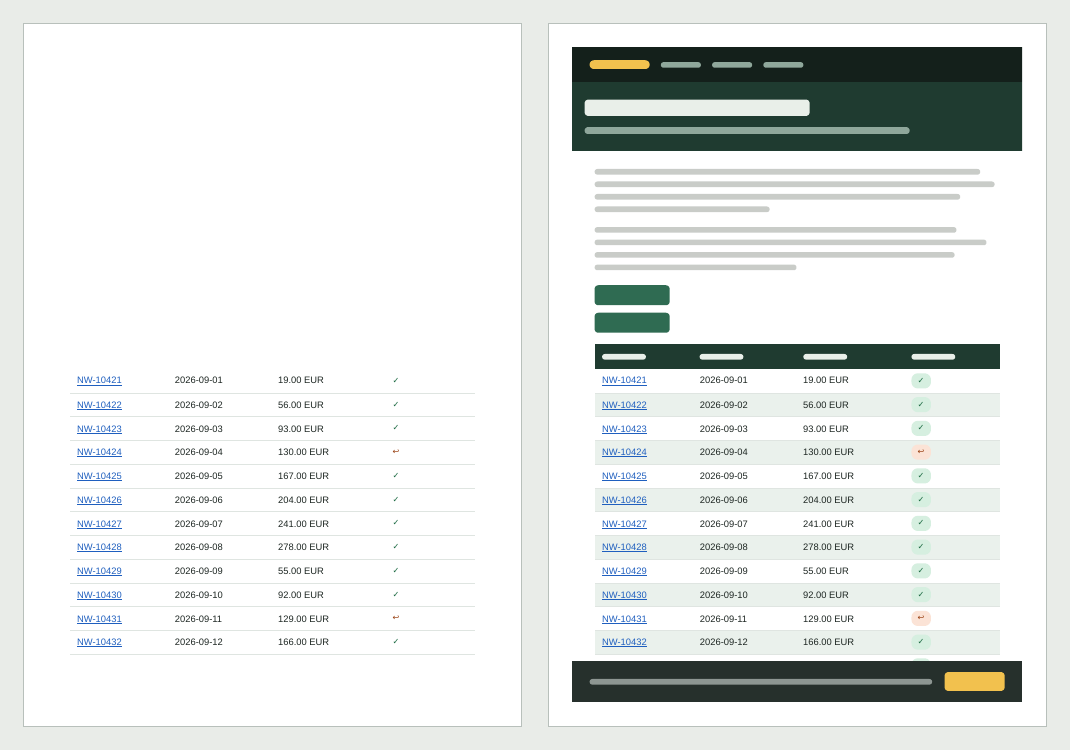
- Colours and backgrounds are gone: to save ink, a browser may leave out background colours and images and turn light text on a dark background into dark text on white, unless the page asks it not to. Background graphics puts them back. On the sample page, the table header was white bars on dark green; without backgrounds it vanished completely. A page in dark mode prints light for the same reason.
- Parts of the page are missing: many sites have print rules that hide menus, sidebars, ads or images. On the sample page the sidebar was hidden that way. No setting in the print window brings those parts back.
- A different layout: an A4 page leaves about 720 pixels of width, less than most desktop windows, so a page that adapts to the screen switches to its tablet or phone layout. On the sample page the two buttons stacked. Landscape or a lower Scale gives more width.
- Empty boxes where pictures were: pictures that load only when scrolled into view print as empty boxes if they never were. Scroll to the end first.
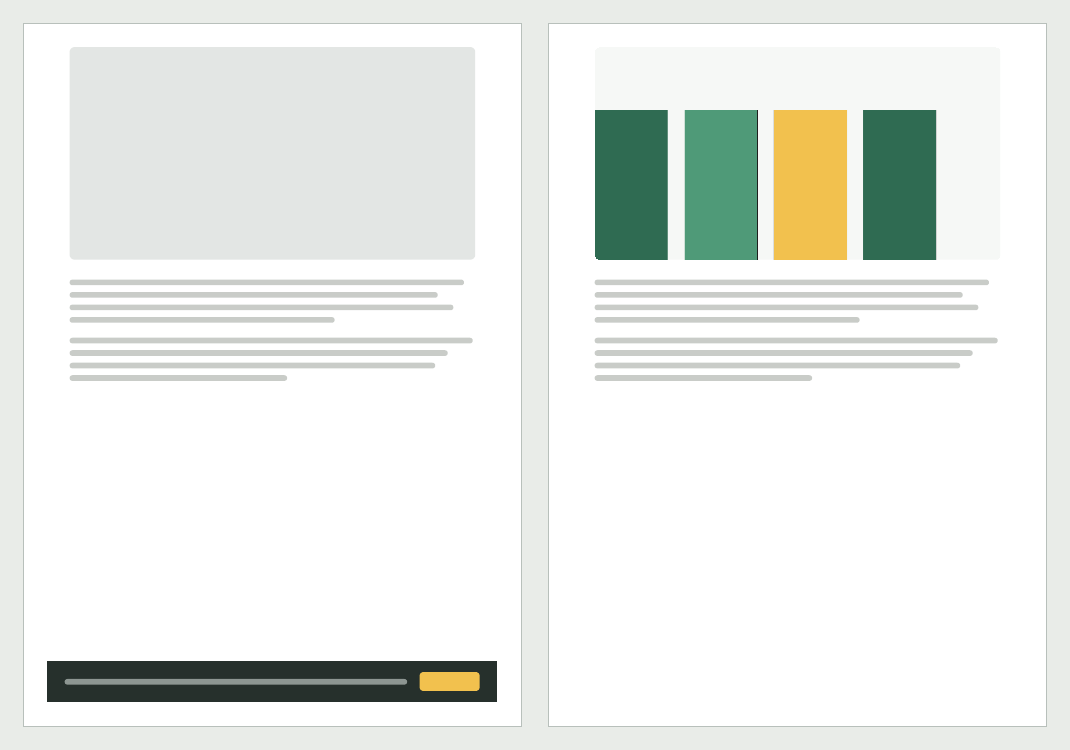
To see the print version without printing, open DevTools (Ctrl+Shift+I, or Cmd+Option+I on a Mac), open the Rendering tab, and set Emulate CSS media type to print.
Tables split across pages
On the sample page, Chrome put the page break between two rows, not through one, and repeated the table's header row at the top of page 2. The sample table is built as a real table with a header row; a page that draws its table from other elements gives Chrome no header row to repeat.
- Try Landscape or a lower Scale. On the sample page Landscape at 80 percent gave 4 pages instead of 3: it fixes width, not length.
- Use Pages to save only the table's pages.
- For whoever builds the page:
break-inside: avoidon each row keeps it from being split.
Print PDF or screenshot PDF: the same page both ways
A screenshot PDF is a picture of the whole page placed on PDF pages. Both PDFs below were made from the sample page on 5 October 2026: once with Save as PDF and Background graphics on, once as a full page screenshot of the same page at 1280 pixels wide, placed in a PDF at page width.
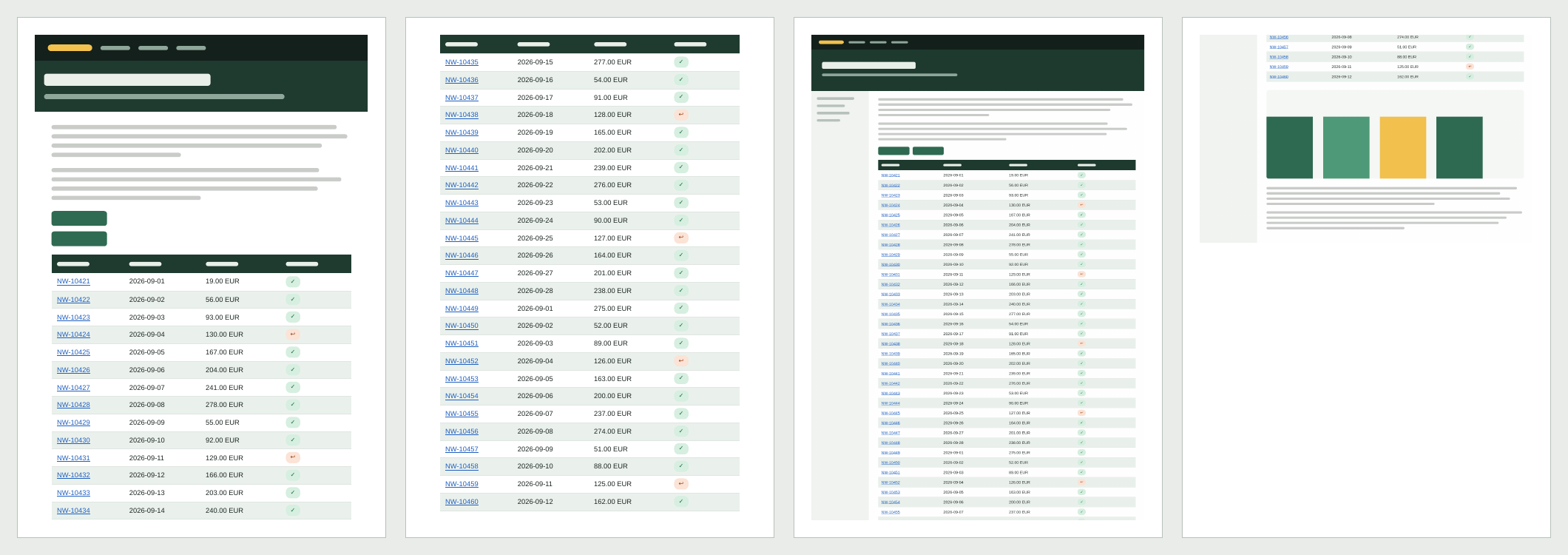
| Result for the sample page | Save as PDF | Screenshot PDF |
|---|---|---|
| Text you can search and copy | Yes, all 40 order numbers | No, the text is part of the picture |
| Links you can click | Yes, 40 | None |
| Backgrounds and colours | Only with Background graphics | Yes, as on screen |
| Layout as on screen | No: sidebar hidden, buttons stacked | Yes |
| Table at the page break | Break between rows, header repeated | One row cut in half, no header on page 2 |
| Pages | 3 | 2 |
| File size | 115 KB | 201 KB |
A screenshot PDF has more limits. Text in it can only be found again with text recognition. A long page is sliced across PDF pages wherever the page ends. A full page screenshot stops at a height limit and misses panels that scroll inside the page; Full page screenshot in Chrome shows how to take one and where it breaks. Turning a screenshot you already have into a PDF is a separate job.
Which to choose
- Save as PDF when someone will read, search, copy or click: an article, a receipt, terms and conditions, documentation.
- A screenshot PDF when the copy must show exactly what the screen looked like: a bug, a setting, a record in an admin panel, or a page whose print rules hide what you need.
- For a long article, Save as PDF with Background graphics off uses the least ink.
- For an archived copy, keep Headers and footers on, so every page carries the address and the date.
Before you send a page as a PDF
- A PDF of a page you are logged in to carries what the page showed: customer names, email addresses, order numbers, account balances. Read it before it leaves your computer. What to cover and how is in Redact before you share.
- A black box drawn in a PDF editor over text in a print PDF can leave the text underneath, selectable and searchable. In a screenshot PDF, cover or blur the picture before it becomes a PDF.
- Open the finished file in a PDF viewer and zoom in, rather than trusting the print preview.
When the page is one step of a written guide, a cropped screenshot of the part that matters usually serves the reader better than the whole page: see Crop to where the work happens.
Sources
All pages checked on . The Chrome labels were read from Chrome 150.0.7871.128 on 5 October 2026.
- Google Chrome Help: Print from Chrome. Ctrl+P on Windows and Linux, Cmd+P on a Mac, File, Print, Save as PDF as a destination, and the Android steps.
- Chromebook Help: Chromebook keyboard shortcuts. Ctrl+P prints the current page.
- MDN: print-color-adjust. Browsers may leave out background images and change text colours for printing unless a page asks for its exact colours.
- MDN: break-inside. The avoid value keeps a page break out of an element.
- Chrome for Developers: Emulate CSS media features. The Rendering tab and Emulate CSS media type: print.
- Chrome for Developers: Open Chrome DevTools. The keyboard shortcuts that open DevTools.