| System | One screenshot | Several in one PDF |
|---|---|---|
| Windows | Open in Photos or Paint, Ctrl+P, printer Microsoft Print to PDF | Select the files in File Explorer, right-click, Print |
| Mac | Preview: File, Print, PDF, Save as PDF | Finder: select in order, Control-click, Quick Actions, Create PDF |
| Chrome, Chromebook | Open the image in a tab (Ctrl+O on a Chromebook), Ctrl+P, Save as PDF | One image per print; combine with another method |
Online converters do the same job, but they receive the file. A screenshot of an admin panel often shows customer names, email addresses and order numbers, so the built-in way keeps that on the computer.
On Windows: Microsoft Print to PDF
- Open the screenshot in Photos or Paint.
- Press Ctrl+P.
- Choose the printer Microsoft Print to PDF and set the layout.
- Click Print, then choose a folder and a file name.
In the Windows Print Pictures window, the box Fit picture to frame crops a picture to fill the frame when its shape differs from the print size; untick it so the edges of a screenshot are not cut off. Windows has no setting to turn it off for good, so users report unticking it for every print job.
If Microsoft Print to PDF is not in the printer list: press Windows+R, type
optionalfeatures.exe, tick Microsoft Print to PDF in Windows Features, click OK and restart.
On Windows 11 24H2, Microsoft Print to PDF can fail to create the PDF when the picture has transparent parts, such as a PNG with an alpha channel; a question about this on Microsoft Q&A dates from September 2025. The suggested workarounds: give the picture a solid background first, or save it as a JPEG, which has no transparency.
On a Mac: Finder and Preview
- One or more screenshots, quickest: in the Finder, select the files, Control-click them and choose Quick Actions, Create PDF. The files appear in the PDF in the order they were selected.
- One screenshot with print options: open it in Preview, choose File, Print, then open the PDF menu at the bottom and choose Save as PDF. Preview also has File, Export, with a Format menu.
- Several screenshots, with print options: open them in one Preview window, then File, Print, PDF, Save as PDF. To leave some out, choose View, Thumbnails, Command-click the ones to keep and tick Selection in Preview in the print window.
In Preview's print window, Scale to Fit with Print Entire Image keeps the whole screenshot; Fill Entire Paper crops it to the proportions of the paper.
In Chrome and on a Chromebook
- Drag the image file into a Chrome tab. On a Chromebook, Ctrl+O opens a file in the browser.
- Press Ctrl+P (Cmd+P on a Mac).
- Under Destination, choose Save as PDF, then click Save.
Chrome prints one image at a time. For several screenshots, use one of the methods above or put them in one document first. How to take the screenshot on a Chromebook in the first place is in How to take a screenshot on a Chromebook. Saving a web page itself as a PDF is a different job: see How to save a webpage as a PDF.
Several screenshots in one PDF
- Number the files first: 01, 02, 03. Every file list then sorts them in order, which makes them easy to select from first to last.
- Crop before converting: cut each shot to the part that matters (see Crop to where the work happens), and keep the same width for every shot so the pages look alike.
- One per page for steps, several per page for an overview. In Preview's print window, Pages per Sheet in the Layout section puts several on one page.
An example: Northwind's support team documents a refund in the Paynest admin panel with four screenshots,
01-find-order.png, 02-order.png, 03-refund-dialog.png and
04-refunded.png. Selected from 01 to 04 in the Finder, Create PDF puts them into one PDF in
that order, one screenshot per page.
A long screenshot in a PDF
A full page screenshot of a long admin page is narrow and very tall, and a PDF page is not. There are two ways to put it on paper: shrink the whole picture onto one page, or print it at page width and let it run over several pages. Only the second can be read.
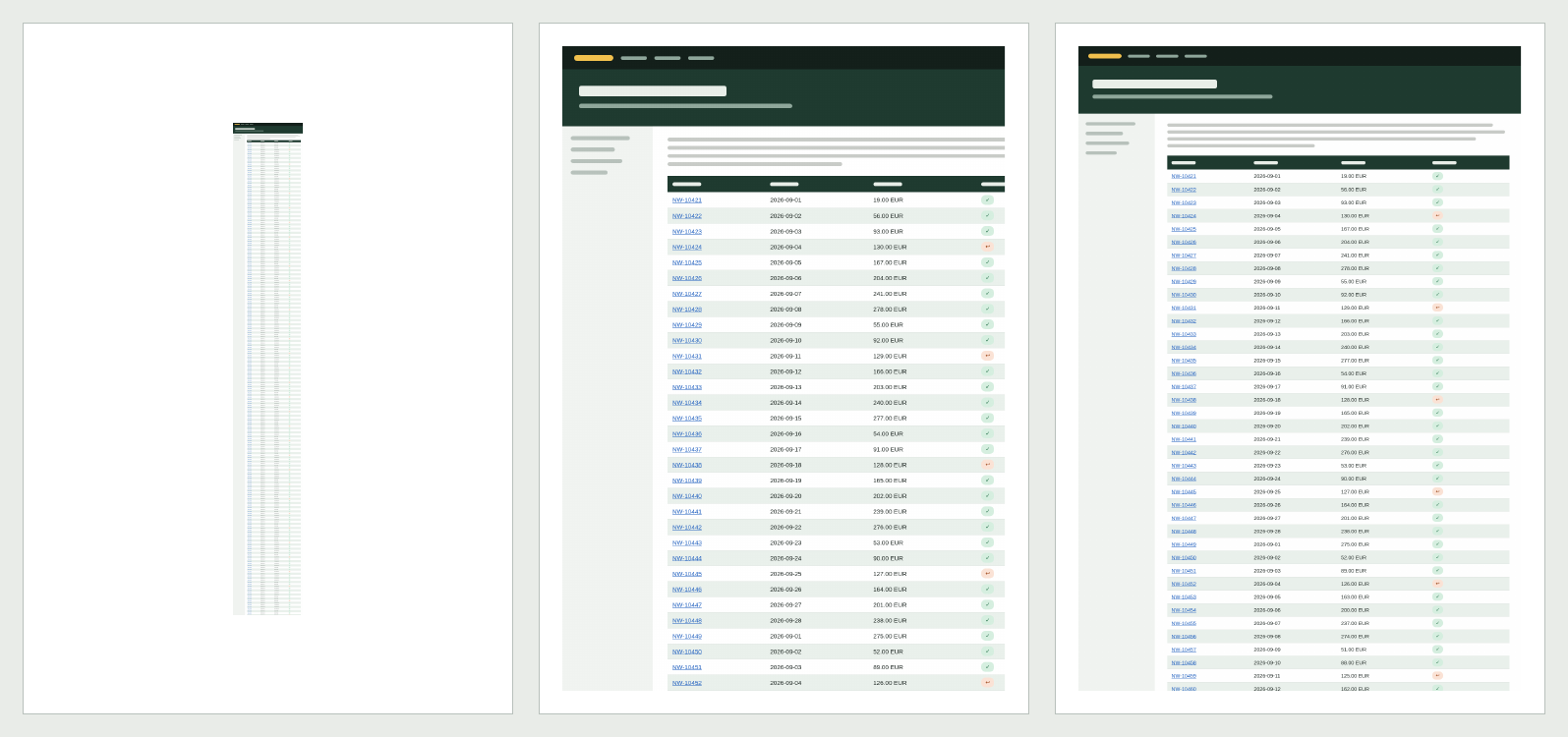
The pictures below come from one test file: a full page screenshot of a Northwind orders list, 1,280 by 9,000 pixels, opened as a file in Chrome 150 on Linux and saved as an A4 PDF on 5 October 2026.
| How it was printed | Pages | Result |
|---|---|---|
| Opened in a tab, printed as is | 1 | The picture is shrunk to 1.2 inches wide; the text cannot be read on paper |
| Clicked once to show it at full size, then printed | 6 | Readable, but about the right 200 pixels are cut off at the page edge |
| Clicked to full size, Scale under More settings set to 84 | 5 | Readable, full width; the page breaks fall wherever the page ends, also through a table row |
The 84 fits a 1,280 pixel wide screenshot on A4 with margins of 0.4 inches; a narrower screenshot needs a higher number, a wider one a lower number. Check the right edge in the preview before saving.
Another way is to cut the screenshot into pieces of about one page height first, then convert the pieces as several screenshots. At 1,280 pixels wide, one A4 page holds about 1,850 pixels of height.
Where the tall screenshot comes from, and where a full page capture stops, is in How to take a full page screenshot in Chrome. Whether a web page is better kept as a print PDF or a screenshot PDF is compared in Print PDF or screenshot PDF.
Keeping the text sharp
How sharp a screenshot looks in a PDF depends on how many of its pixels share one inch of paper. An A4 page is 595 points (8.27 inches) wide. A 1,280 pixel wide screenshot across the full width is about 155 pixels per inch; inside 0.4 inch margins, about 170. Text that was 15 pixels high on screen is then about 6 points high: small, but readable on screen and on paper.
Shrunk onto one page, the same screenshot in the test above was about 1,080 pixels per inch, and the same text 1 point high. The pixels are all still in the file, so it can be read on screen when zoomed in about ten times, but not on paper.
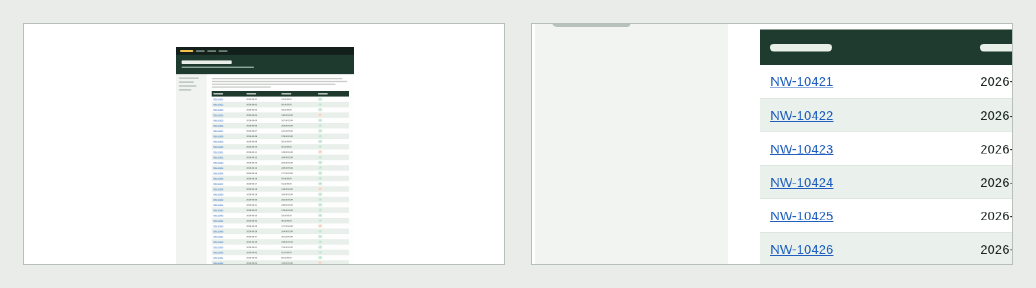
- Take the screenshot at 100 percent browser zoom, and do not make it smaller before converting.
- Keep screenshots of text as PNG. JPEG compression is made for photos and leaves smudges around the sharp edges of letters. The exception is the transparency problem on Windows 11 24H2 above.
- Text in a screenshot PDF is part of the picture: it cannot be searched, selected or copied.
Before you send the PDF
- Order: scroll through the whole PDF once; a file selected out of turn lands out of turn.
- Crop: each page shows the part that matters, not the whole desktop.
- Personal data: customer names, email addresses and order numbers are covered or blurred in the screenshot before it becomes a PDF. A box drawn over a picture in a PDF editor can be removed again. What to cover and how is in Redact before you share.
- File size: a screenshot PDF is about as large as the screenshots in it. The 1,000 KB tall PNG above gave a 1,002 KB PDF. Check the size against the limit of the email or ticket system.
- Name: name the file for the reader, such as
northwind-refund-steps.pdf, notScreenshot 2026-10-05.pdf.
Sources
All pages checked on . The Chrome results come from Chrome 150.0.7871.128 on Linux, the same day.
- Microsoft Q&A: How to convert JPG to PDF. Photos or Paint, Ctrl+P, Microsoft Print to PDF.
- Microsoft Q&A: Microsoft Print to PDF. Turning the printer on with Windows+R and optionalfeatures.exe.
- Microsoft Q&A: Turning off fit to frame when printing a picture. What Fit picture to frame does, and why users untick it each time.
- Microsoft Q&A: Microsoft Print to PDF fails to handle transparent images. The Windows 11 24H2 problem and its workarounds.
- Apple Mac User Guide: Combine files into a PDF. Quick Actions, Create PDF, and the order of the files.
- Apple Mac User Guide: Save a document as a PDF. File, Print, PDF, Save as PDF.
- Apple Preview User Guide: Print PDFs and images. Several files in one window, Thumbnails, Selection, Scale to Fit, Print Entire Image, Fill Entire Paper, Pages per Sheet.
- Apple Preview User Guide: Export PDFs and images. File, Export and the Format menu.
- Google Chrome Help: Print from Chrome. Ctrl+P, Cmd+P on a Mac, and Save as PDF as a destination.
- Chromebook Help: Chromebook keyboard shortcuts. Ctrl+P prints, Ctrl+O opens a file in the browser.