What a browser extension is
An extension is a package of web code that the browser runs with extra rights. It can put a button in the toolbar, read and change the pages you open, or wait in the background for something to happen. Typical jobs:
- blocking ads and trackers on every page;
- filling in saved logins from a password manager;
- translating the page you are reading;
- taking screenshots, or recording the steps of a task as a guide.
The difference from a website is reach. A website sees only its own tab. An extension can be given access across tabs and sites, and that is why its permissions are worth reading before you click Add.
Extension or plugin
People use the words interchangeably, but a plugin was something else: native code such as Flash, loaded through the old NPAPI interface. Chrome and Firefox no longer run those. What you install from a store today is an extension.
The model is not new. Chrome began testing extensions in 2009, Firefox moved to the same WebExtensions format in 2017, and Safari on the Mac added support for extensions written against the Chrome API in 2020, according to Wikipedia's article on browser extensions.
The parts of an extension
- manifest.json
- The declaration Chrome reads before it runs anything: name, version, permissions, and which files do what. Everything else below is listed in it.
- Service worker
- The background script. It has no page of its own, wakes up on events (a click on the toolbar icon, a message, an alarm) and is stopped when idle.
- Popup and options pages
- Ordinary HTML pages that belong to the extension: the panel under the toolbar icon and its settings page.
- Content scripts
- JavaScript that runs inside a web page and can read and change what is on it. They are either declared in the manifest for matching sites, or injected on demand through the scripting API, as Chrome's content scripts guide describes.
- Storage
- Settings and data kept by the browser on your machine, through
chrome.storageor IndexedDB.
What Manifest V3 is
Manifest V3 is the current version of the manifest format and the rules that come with it. Per Chrome's overview of Manifest V3, the main changes are:
- a service worker that stops when idle replaces the background page that ran all the time;
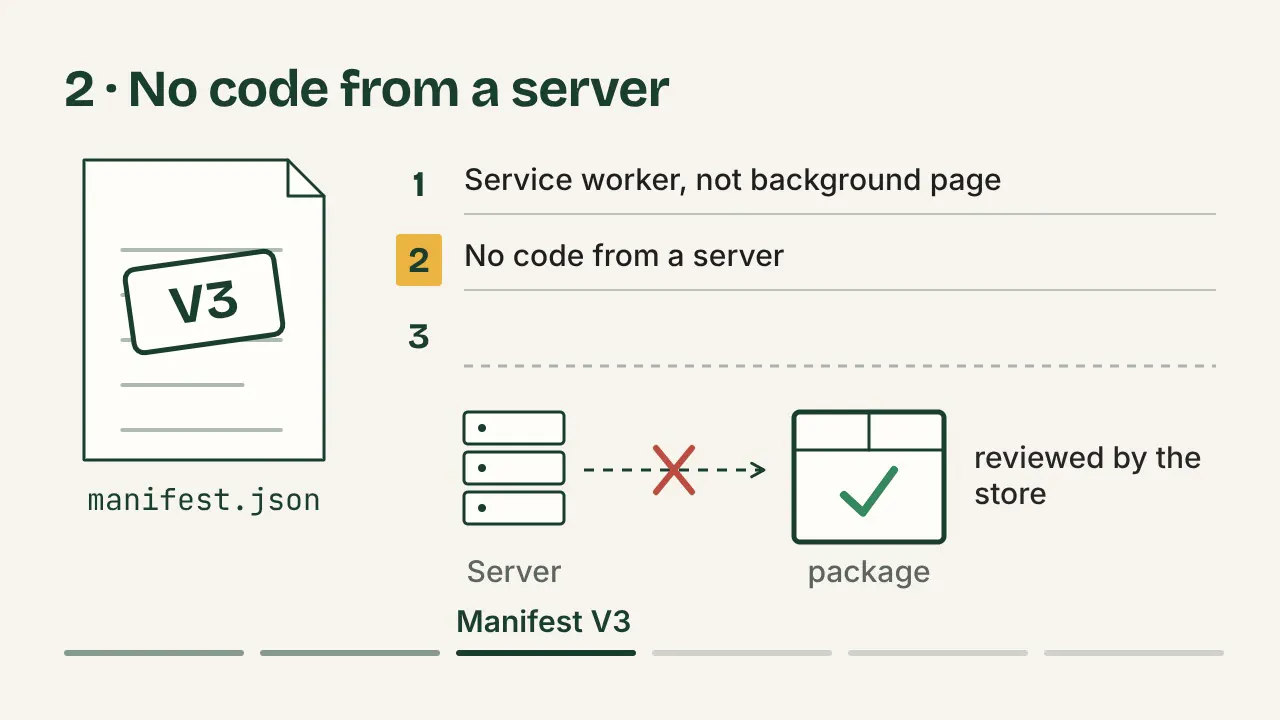
- an extension may no longer load code from a server: everything it runs ships inside the package the store reviewed;
- ad blockers and similar tools filter requests with rules declared to the browser (
declarativeNetRequest) instead of intercepting each request in their own code.
The old format was phased out in steps, according to Chrome's Manifest V2 timeline:
| When | What changed |
|---|---|
| January 2022 | The Chrome Web Store stops accepting new public Manifest V2 extensions |
| 31 March 2025 | Manifest V2 extensions are disabled by default for all users, who can still turn them back on |
| 24 July 2025 | With Chrome 138 they stay disabled; users can no longer turn them back on |
| 31 August 2026 | The remaining Manifest V2 extensions are removed from the Chrome Web Store |
For a reader, that means any extension you can install from the Chrome Web Store today is a Manifest V3 extension. The change was disputed: the Electronic Frontier Foundation and other critics argued it reduces what ad blockers can do, as Wikipedia records. Manifest V3 does not make an extension safe; the permissions still decide what it can reach.
One real manifest, line by line
This is the complete manifest of a step-recorder extension, version 1.4.0. It records a task in the browser as numbered steps with screenshots.
 1  {
 2    "manifest_version": 3,
 3    "name": "__MSG_extName__",
 4    "short_name": "stepkeep",
 5    "version": "1.4.0",
 6    "description": "__MSG_extDescription__",
 7    "default_locale": "en",
 8    "minimum_chrome_version": "116",
 9    "permissions": ["activeTab", "tabs", "storage", "scripting", "downloads"],
10    "optional_host_permissions": ["*://*/*"],
11    "storage": {
12      "managed_schema": "managed_schema.json"
13    },
14    "options_ui": {
15      "page": "src/options/options.html",
16      "open_in_tab": true
17    },
18    "background": {
19      "service_worker": "src/background/sw.js",
20      "type": "module"
21    },
22    "action": {
23      "default_title": "__MSG_actionTitle__",
24      "default_popup": "src/popup/popup.html",
25      "default_icon": { "16": "icons/icon16.png", "128": "icons/icon128.png" }
26    },
27    "icons": { "16": "icons/icon16.png", "128": "icons/icon128.png" }
28  }
Lines 1 to 8 are identity: format version 3, the name (filled in per language from a messages file), version and the oldest Chrome it runs on. Lines 14 to 27 name the options page, the service worker and the popup. The icon lists are shortened here to two sizes. The lines that decide what the extension can reach are 9 to 12. The warnings are quoted from Chrome's permissions list:
| Permission | What it allows | Warning Chrome shows | Why this extension asks |
|---|---|---|---|
activeTab |
Access to the current tab, only after the user clicks the extension | None | To take the screenshot of the tab being recorded |
tabs |
The address and title of open tabs | "Read your browsing history" | To know which tab is being recorded and on which page each step happens |
storage |
Saving data in the browser, on the machine | None | Settings and the licence record |
scripting |
Running a script in a page the extension already has access to | None | To inject the recorder into the page when recording starts |
downloads |
Saving files to the downloads folder | "Manage your downloads" | To save the exported PDF, HTML or ZIP file |
optional_host_permissions |
Nothing at install; the extension may ask later for sites matching *://*/* |
None at install; a prompt naming one site when it asks | When recording starts, Chrome asks for that one site, and the user can refuse |
storage.managed_schema |
Settings an administrator can set by policy | None | So IT can preset options for a team |
activeTab shows no warning because it only grants temporary access to the site the user is on, at the moment they invoke the extension, as Chrome's activeTab guide explains. Optional host permissions are requested while the extension runs, with chrome.permissions.request, per the permissions API reference. The pattern *://*/* says which sites the extension is allowed to ask for, not which ones it has. How an administrator allows or blocks an extension for a whole company is its own topic, covered in keeping process documentation private.
What the manifest leaves out
- No
host_permissions. Required host access is granted at install. An extension that asks for all sites there shows the warning "Read and change all your data on all websites" before it is even added. - No
content_scriptsblock. Declared content scripts run on every matching page you open. Without one, nothing of this extension runs in a page until it is injected, here only when a recording starts. - No
webRequest. It cannot watch or change the requests the browser makes.
Can an extension see your passwords
An extension can see a password in a page it has access to, but no extension API hands it the list of passwords Chrome has saved. A content script runs inside the page, so it can read a filled-in password field and every key typed into the page, the same as the page's own code can. The risk is the page, not the vault.
So the question to ask about an extension is which sites it has access to:
- "Read and change all your data on all websites": it can run a script in every page you open, your bank and your mail included.
- On click: it gets a page only when you click the extension in that tab.
- A named site: it can reach that site and no other.
What an extension does with that access is its own code's decision. The recorder above, for example, stores which element was clicked or typed into and that element's label, not the text typed, and keeps page addresses as origin plus path, without the query string. Its screenshot shows a field the way the page draws it, so a password field appears as dots. That is how this one extension's code is written, not a rule for extensions in general.
How to check an extension yourself
- Read its permissions and site access. Open
chrome://extensionsand click Details under the extension. The page lists its permissions, and "Site access" offers On click, On specific sites and On all sites. Set it to the narrowest one the extension still works with. - Read its manifest. Each installed extension sits in your Chrome profile folder under
Extensions/<id>/<version>/manifest.json; the 32-letter ID is shown on the Details page, andchrome://versionshows the profile path. The usual locations are%LOCALAPPDATA%\Google\Chrome\User Data\Default\Extensionson Windows,~/Library/Application Support/Google/Chrome/Default/Extensionson macOS and~/.config/google-chrome/Default/Extensionson Linux. On a Chromebook the profile folder is not reachable from the Files app, so the Details page is the check there. - Watch what it sends. On
chrome://extensionsturn on Developer mode, then click "service worker" next to Inspect views under the extension. In the DevTools window that opens, choose the Network tab and use the extension for its real job. Every request it makes from the background appears in the list; an extension that makes no request leaves it empty. Its popup and other pages have their own DevTools and need the same look.
Then remove the extensions you no longer use. An extension you forgot still has the access you gave it.
A step recorder built to pass these checks
For documenting a task in a web app, the checks above point to a recorder that asks for one site at a time and sends nothing, so the Network panel stays empty while you record and export.
Sources
All pages checked on .
- Wikipedia: Browser extension. Chrome extensions from 2009, Firefox WebExtensions in 2017, Safari in 2020; the criticism of Manifest V3 by the EFF and others.
- Chrome for Developers: Content scripts. Content scripts read and change the page; declared or injected on demand.
- Chrome for Developers: What is Manifest V3. Service workers, no remotely hosted code, declarativeNetRequest.
- Chrome for Developers: Manifest V2 support timeline. The dates of the Manifest V2 phase-out.
- Chrome for Developers: Permissions list. What each permission allows and the warning it shows.
- Chrome for Developers: The activeTab permission. Temporary access to the current tab on a user gesture, without a warning.
- Chrome for Developers: chrome.permissions. Optional permissions requested at runtime.
- Paws Off: Chrome extension all-sites permission explained. host_permissions for all sites and the warning Chrome shows for them at install.